¶ Managing Your Business Applications
This section guides you through accessing your created business applications and performing essential administrative tasks, such as managing your subscription and maintaining your database.
¶ 1. Accessing Your Businesses
Your central dashboard allows you to view all business applications associated with your account.
¶ Step 1: Navigate to the Dashboard
Log in and navigate to the My Businesses page. (As shown in the first image, the URL is admin.akas.co/my/businesses).
¶ Step 2: View and Create Applications
Existing Applications: You will see cards for each business you have already created (e.g., iShop Cambodia, iShop 2). Click on any of these cards to view and manage its details.
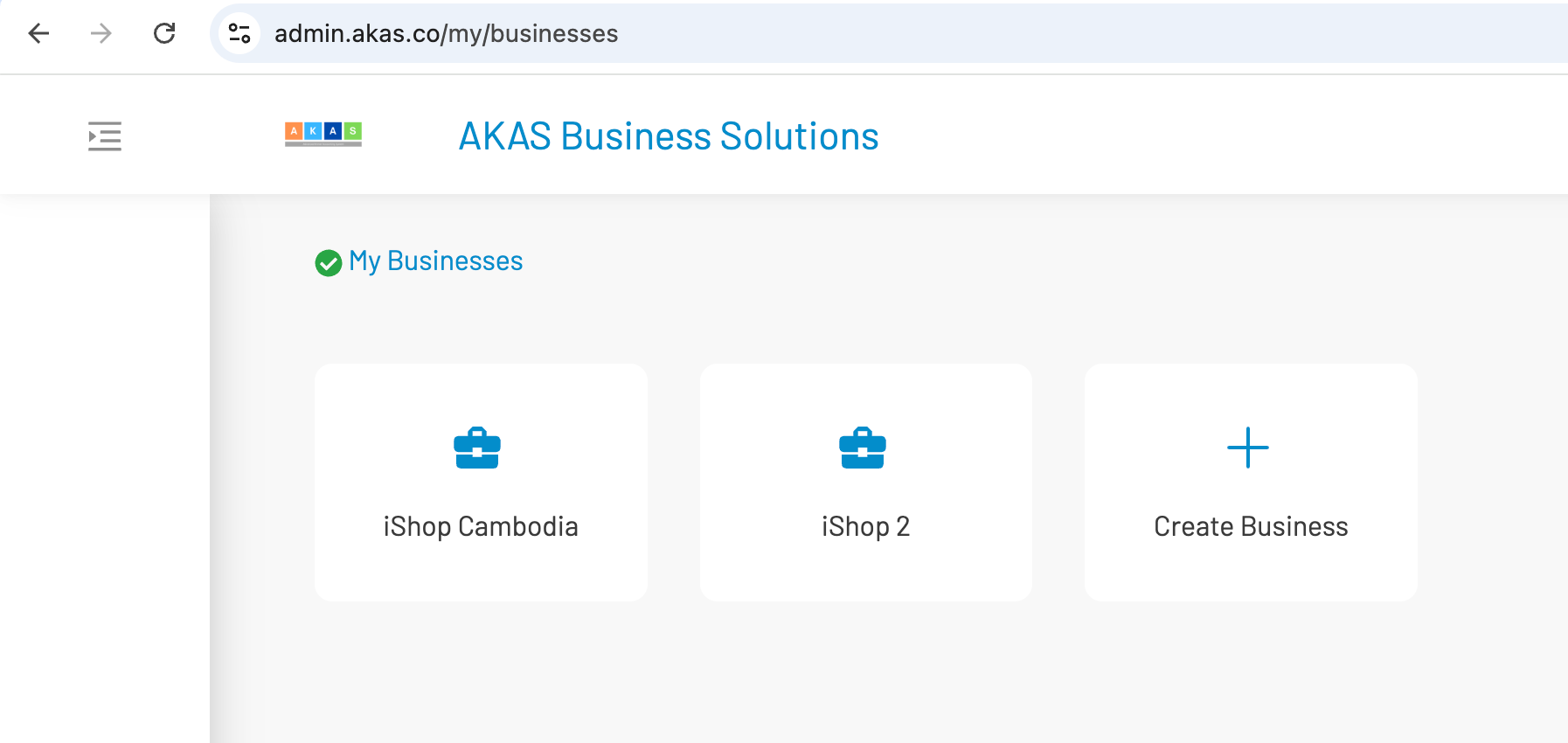
Create a New Business: Click the Create Business card (with the + icon) to start the process of launching a new application instance.
¶ 2. Business Management Details (iShop Cambodia Example)
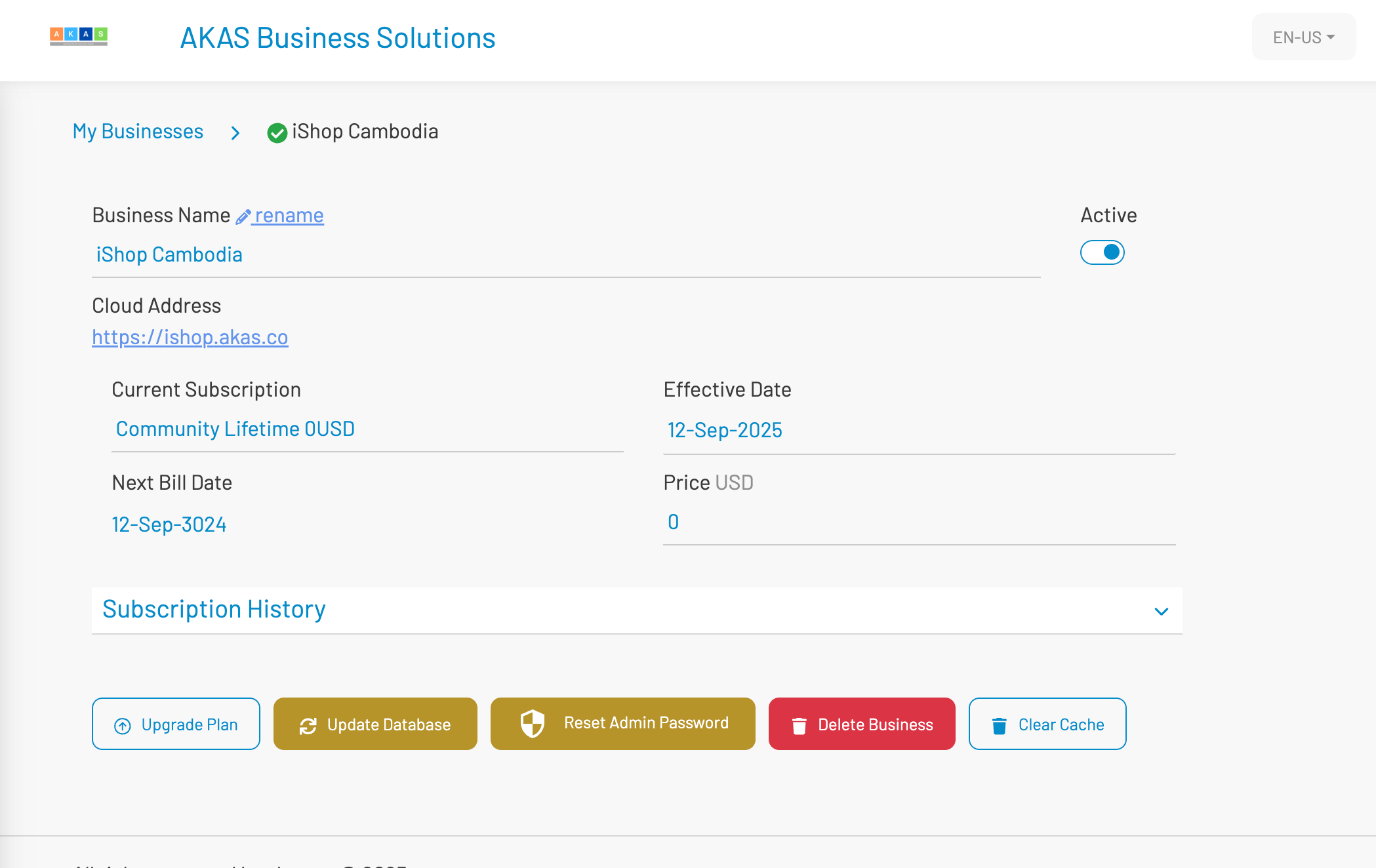
Once you click on an existing business (like iShop Cambodia), you will be taken to its dedicated management page.
| Detail | Description |
|---|---|
| Business Name | The display name for your business. Click rename to change it. |
| Cloud Address | This is the live URL for your business application (e.g., https://ishop.akas.co). |
| Active Toggle | Use the switch to make the business application active or inactive (turn it off for maintenance). |
| Current Subscription | Shows the plan you are currently on (e.g., Community Lifetime 0USD). |
| Effective Date | The date your current subscription plan started (e.g., 12-Sep-2025). |
| Next Bill Date | The date your next payment is due (e.g., 12-Sep-3024). |
| Price USD | The monthly/annual cost of your current plan. |
| Subscription History | Click the dropdown to review past and upcoming plan changes. |
¶ 3. Core Administrative Actions
The buttons at the bottom of the management page allow you to perform critical maintenance and subscription actions.
| Action Button | Purpose |
|---|---|
| Upgrade Plan (Blue) | Use this to move to a higher-tier subscription plan, access more features, or renew your current plan. |
| Update Database (Yellow) | Perform necessary database updates or migration tasks, especially after a major software version release. |
| Reset Admin Password (Yellow) | If you forget the main administrator password for the ERP application, use this to set a new one. |
| Delete Business (Red) | Permanently remove the application instance and all its data. Use with extreme caution. |
| Clear Cache (Blue) | Clear the server and browser cache for the application to resolve display issues or ensure new updates are loaded correctly. |