List of Values (LOV) are used to provide flexible and predefined user values for lookups, dropdown menus, or radio button selections across the system. This ensures data consistency and simplifies the data entry process for end-users.
¶ Overview
The LOV configuration screen is divided into two main sections as seen in this image:
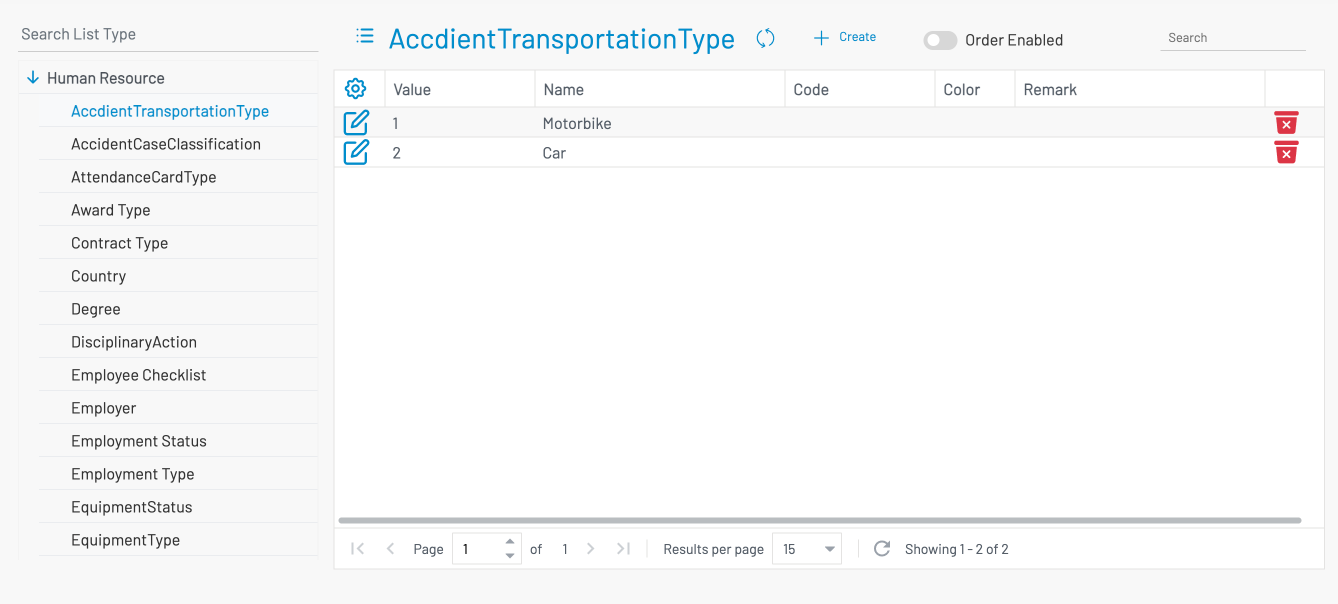
Sidebar: A categorized list of all available List Types (e.g., Human Resource → AccidentTransportationType, etc.).
Main Workspace: The management area for defining the specific values within a selected List Type.
¶ How to use List of Values
¶ Search List Type
To find a specific list, use the Search List Type bar located at the top of the left sidebar. This filters the categories and types to help you locate the configuration you need quickly.
¶ Create a New Value
To add a new option to a list:
Select the List Type from the sidebar (e.g., AccidentTransportationType).
Click the + Create button in the top toolbar.
Fill in the required fields in the new row.
¶ Define Value Properties
When managing a list, you can configure the following fields:
Value: The internal ID or numeric value used by the database (e.g., 1, 2).
Name: The text label that will be visible to users in dropdowns or radio buttons (e.g., Motorbike, Car).
Code: An optional short code used for integration or system-level identification.
Color: Allows you to assign a specific color to the value for visual representation in other modules.
Remark: A field for internal notes or descriptions regarding the use of this specific value.
¶ Enable Custom Ordering
If you want to control the sequence in which these values appear in a dropdown:
Toggle the Order Enabled switch to the "On" position.
Adjust the order of the items as needed.
¶ Edit or Delete Values
Edit: Click the Pencil icon on the left side of any row to modify its properties.
Delete: Click the Red Trash icon on the right side of a row to remove that value from the list.
¶ Pagination and Refresh
The bottom of the screen provides tools for managing large lists:
Page Navigation: Move between pages using the arrow icons or by typing a specific page number.
Results per page: Adjust how many rows are visible at once (default is 15).
Refresh: Click the Circular Arrow icon to update the list with the latest data.