Message Templates allow you to standardize communication across the system by creating predefined formats for Emails, SMS, and Letters. These templates utilize dynamic variables to automatically populate specific data such as invoice numbers, customer names, and request details.
¶ Overview
The Message Templates module is divided into a main list view for management and a detailed editor for creating or modifying content.
¶ Main List View
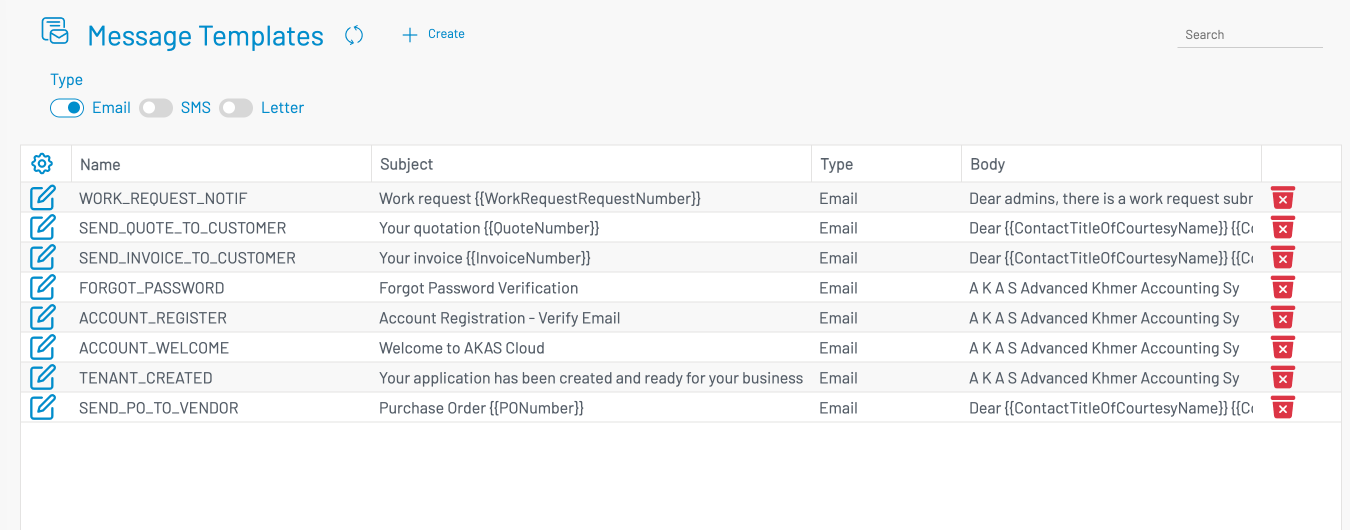
As shown in message-template-list.png, the main dashboard provides a summary of all active templates:
Type Filter: Switch between Email, SMS, or Letter views to manage templates for different communication channels.
Search: Use the top-right search bar to quickly find a template by name or subject.
Action Icons:
Edit (Pencil icon): Opens the editor for the selected template.
Delete (Red Trash icon): Permanently removes the template from the system.
¶ Template Properties
Name: The internal identifier for the template or user defined name (e.g., SEND_INVOICE_TO_CUSTOMER).
Subject: The header or subject line of the outgoing message.
Type: The medium through which the message is delivered.
Body: A preview of the message content.
¶ How to Create or Update a Template
To modify an existing template, click the Edit icon next to the desired row in the list view. To start from scratch, click + Create.
¶ Configuration Fields
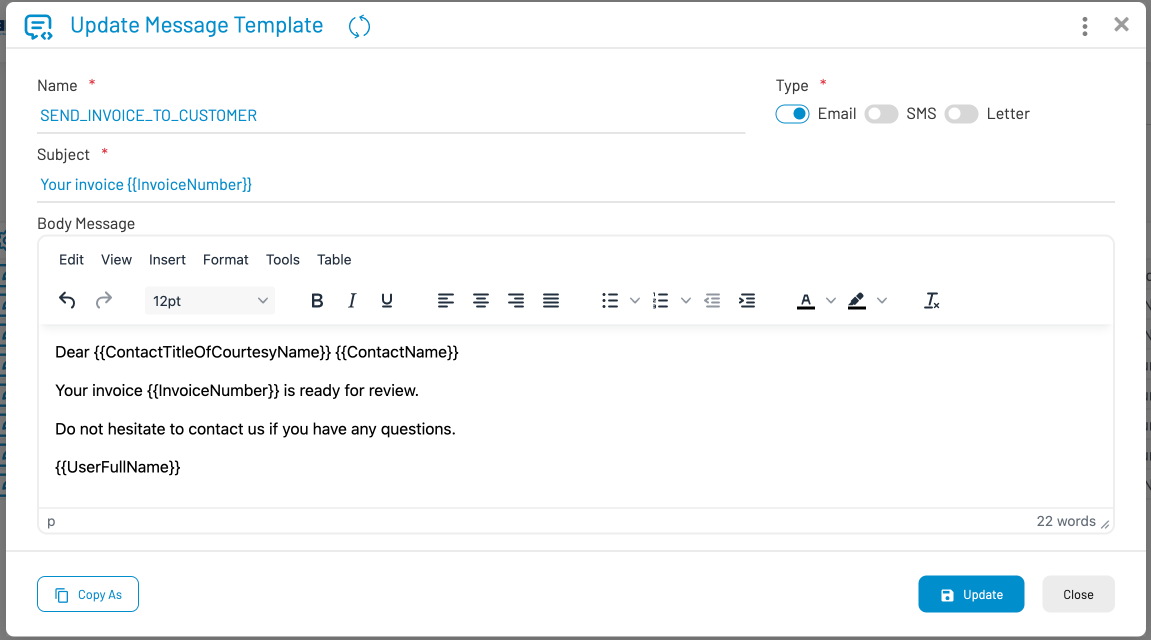
Based on message-template.png, the editor includes the following mandatory fields:
Name: Define a unique name for the template.
Type: Toggle between Email, SMS, or Letter.
Subject: Enter the subject line. You can include dynamic variables here, such as {{InvoiceNumber}}.
¶ Message Content and Variables
The Body Message section features a rich text editor that allows you to format text, insert tables, and adjust alignments.
To personalize messages automatically, use Dynamic Variables enclosed in double curly braces: i.e.
{{ContactName}}: Inserts the recipient's name.
{{InvoiceNumber}}: Inserts the specific invoice ID associated with the message.
{{UserFullName}}: Inserts the name of the staff member sending the message.
AKAS recognizes more dynamic variables than this. Just start type {{ (2 of square brackets) then it will list down the variables.
¶ Saving Your Work
Copy As: Allows you to duplicate the current template to create a new version quickly.
Update / Create: Saves the current changes to the database.
Close: Exits the editor without saving.