This section guides you through the process of logging into the AKAS POS (Point of Sale) system for daily operation.
¶ 1. Login Screen Overview
The login screen provides the necessary fields to authenticate your access and select your operational mode.
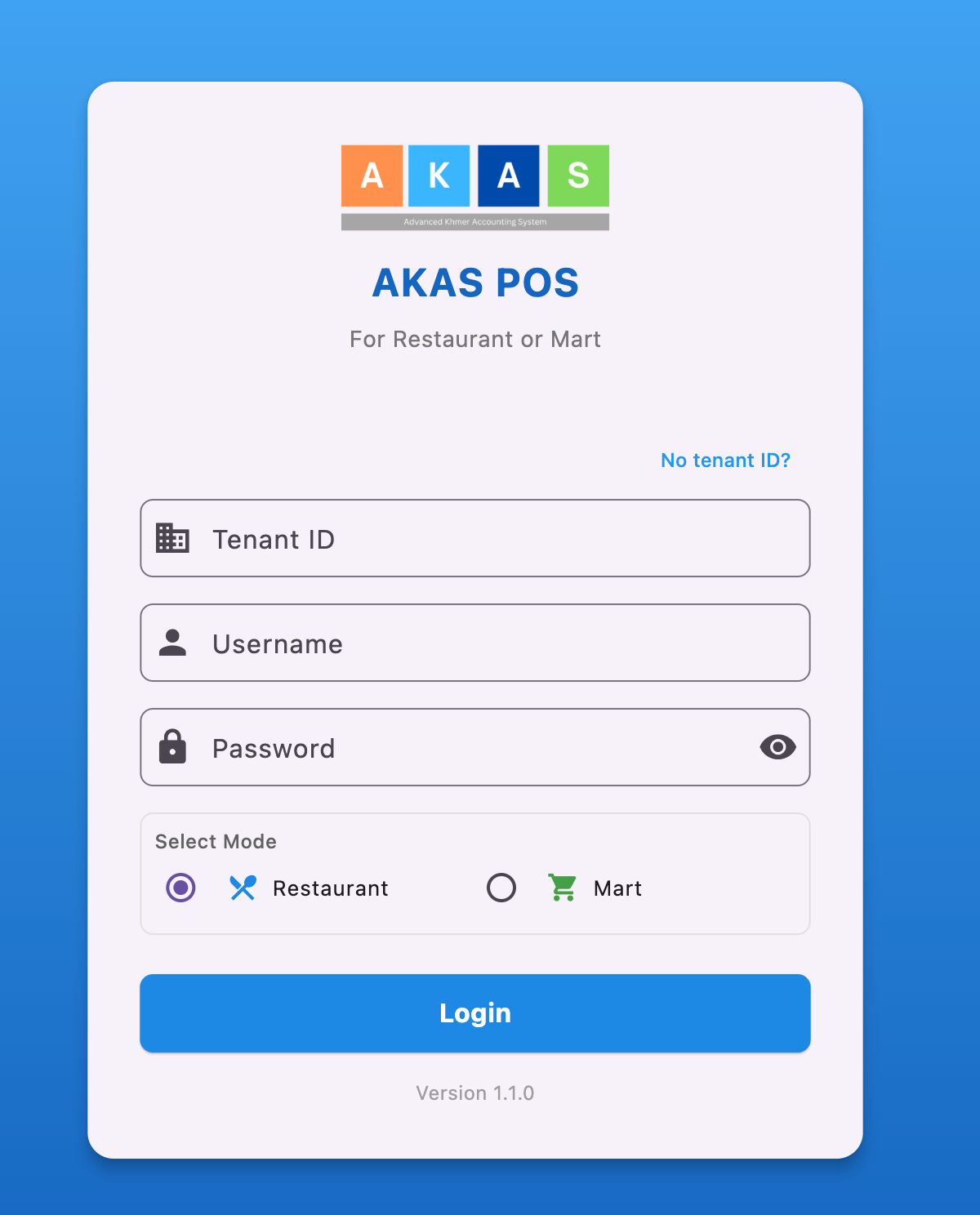
| Element | Description |
|---|---|
| Tenant ID Field | Your unique identifier for your business/location. |
| Username Field | Your personal user account name. |
| Password Field | Your confidential password. |
| Mode Selection | Radio buttons to choose between Restaurant or Mart mode. |
| Login Button | The button to submit your credentials and enter the system. |
| "No tenant ID?" Link | For assistance if you do not know your Tenant ID. |
| Version 1.1.0 | Displays the current software version. |
¶ 2. Step-by-Step Login Process
Follow these steps to successfully log in and start using the POS system:
¶ 🎯 Step 1: Enter Your Credentials
Tenant ID: Tap or click in the field labeled "Tenant ID" and enter the unique identifier provided to your business or branch.
Note: If you do not know this ID, contact your system administrator or click the "No tenant ID?" link for assistance.
Username: Tap or click in the field labeled "Username" and enter your personal username.
Password: Tap or click in the field labeled "Password" and enter your password.
Tip: You can click the eye icon on the right side of the Password field to temporarily view the characters you are typing, which can help prevent typos.
¶ 🛒 Step 2: Select the Operational Mode
Before clicking Login, you must select the correct mode for your current operation.
Select the radio button next to Restaurant if you are operating in a dining or food-service environment.
Select the radio button next to Mart if you are operating in a retail, convenience store, or supermarket environment.
¶ ✅ Step 3: Complete the Login
After entering your credentials and selecting the correct mode, click the large Login button at the bottom of the screen.
If the credentials and mode are correct, the system will load the main POS dashboard for the selected mode.
Troubleshooting: If the login fails, you will likely see an error message (e.g., "Invalid credentials" or "Invalid Tenant ID"). Check all fields for typos, ensure you have selected the correct mode, and try again. If the issue persists, contact your system administrator.