This screen lets you maintain your organisation structure and update company details. The Logo image is available only for the top-level Company org unit.
¶ Create or update an org unit
- Open the app and go to: Setup → Org Units.
- Switch between Chart/List modes to select a node to edit.
¶ Edit the Company details
- Select the Company node and click Edit (or double click to edit).
- Fill in fields as needed:
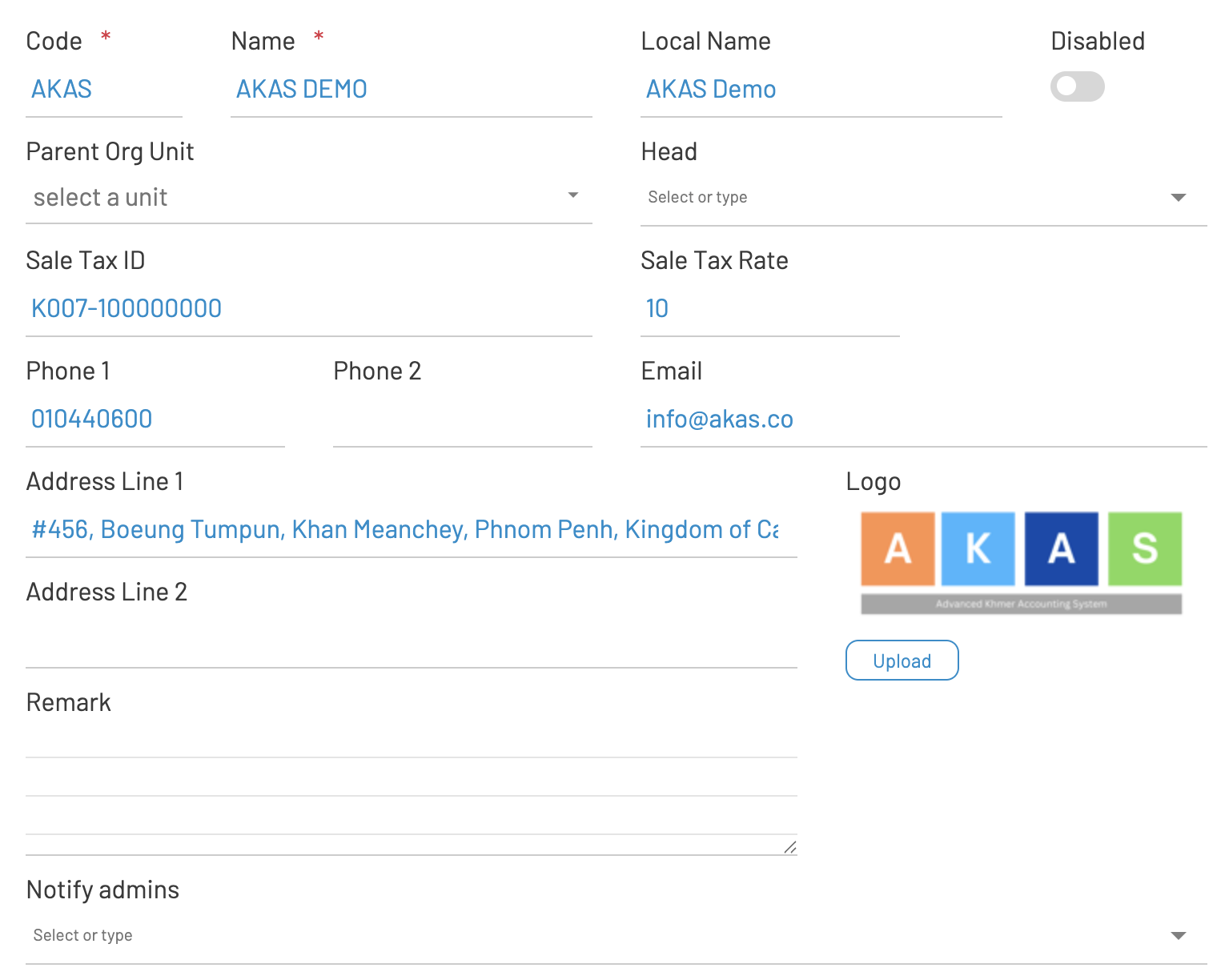
- Code: Required. Automatically uppercased. The code of unit.
- Name and Local Name: Required/optional names. Local name is the name of the unit in your local language.
- Disabled: Turn On to deactivate the unit. Unit will be no longer visible to the new transaction and just kept for archive purpose
- Parent Org Unit: Select the parent unit (not applicable for Company). i.e. IT Department is the parent of Networking and Software Dev unit.
- Head: Pick the employee who leads this unit.
- VATIN and VAT Rate: Shown only for Company level.
- Phone 1/Phone 2, Email.
- Address Line 1/2, Remark.
- Notify admins: Choose employees to receive notifications in several processes.
AKAS supports up to 4 Levels of organization units for approval flow:
- 0. Company Level: This is the top level of the organization
- 1. Division or Branch Level: Geographical location or offices
- 2. Department Level: Departments that are residing in each branch
- 3. Section Level: Section level beneath the department
However it does not strict and you can setup unlimited levels of hierarchy.
¶ Upload or change the Logo
- Ensure you are editing the top-level Company record. If you just created it, click Save first.
- On the right side of the form, find the Logo preview and click Upload.
- Choose an image file (image/* such as PNG or JPG). The system uploads it immediately.
- After upload completes, the page refreshes and the new logo appears. If you don’t see it, refresh the browser.
Notes
- The Logo control appears only when editing the Company level.
- If the Upload button isn’t visible, save the record first and make sure you selected the Company node.
- If the logo still looks unchanged, clear the browser cache and refresh.