Pay element is the main component of payroll and employee benefit. Some example of pay elements are Basic Pay, Overtime, Allowances, etc. AKAS supports a very sophisticated setup of pay element to make its payroll module very flexible.
You can treat a pay element as an Excel column which you use to calculate payroll manually.
| Employee Name | Element 1 | Element 2 | Element 3 |
| Basic | OT | = Basic + OT | |
| Dara | 300 | 30 | 330 |
| Vatey | 300 | 0 | 300 |
| Chanthou | 220 | 20 | 240 |
You also need to define some attributes to your pay element to specify whether it is an earning or deduction and how it is captured and calculated (manually enter by user or base on the other module i.e. attendance or it is a formula, of course, we can formula).
To open Pay Element Setup Screen, click on Payroll Menu > Data Setup > Pay Elements. The following screen will be opened.
You can search using the search box, add or edit or delete pay element item using respective Add, Edit, and Delete button respectively.
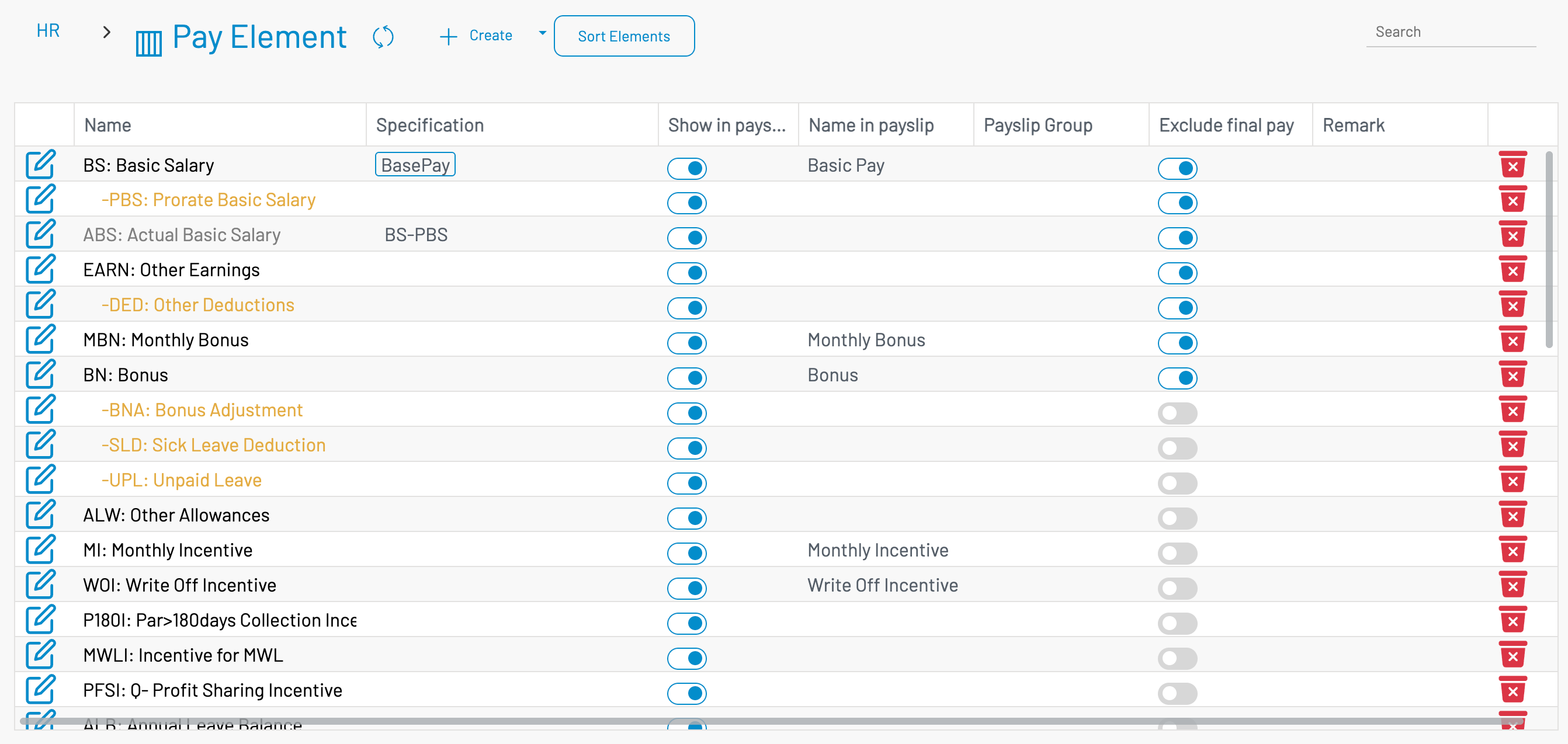
To add new Pay Element, click on + Create button; or to edit existing Pay Element, click on Edit button
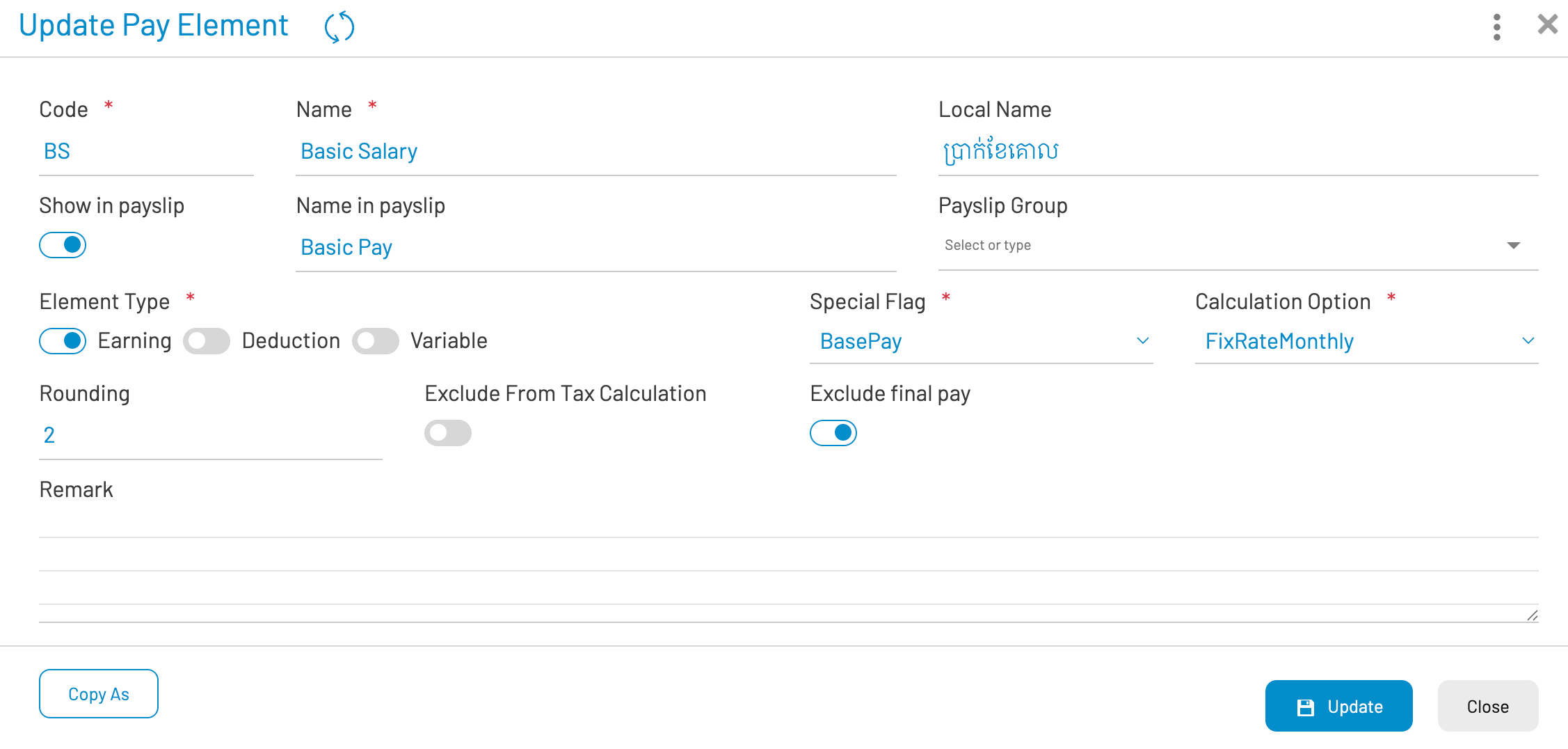
| Field Name | Type of Data | Description |
|---|---|---|
| Code | Text (6) | Identification/Code of pay element. This is useful when writing formula. |
| Element Name | Text (80) | Descriptive name of element |
| Local Name | Text | Description name of element in your local language. It will be also shown in payslip. |
| Show in payslip | Boolean | Tick to shown this element in the payslip |
| Name in payslip | Text (80) | Specify the name to show in payslip. Keep blank if you want to show Element Name |
| Pay slip group | Text (80) | Group name to display in pay slip. This is useful for designing payslip and you can group your pay elements using this same name. |
| Element Type | Choice |
Type of pay element. AKAS support the following type of elements:
E.g. you can define a variable computed value of Total Pay which is the sum of Basic Pay – All Deduction + Allowance. |
| Special Flag | Choice |
Flag that identifies the element to the payroll calculator:
|
| Calculation Option | Choice |
Method used to calculate the pay element. Supported value are:
|
| Rounding | Number | The number of digits to round when calculating amount for this element. |
| Exclude from Tax Calculation | Boolean | The amount in this element will not be used to calculate tax. |
| Exclude final pay | Boolean | This element will be exclude in final pay calculation. |
¶ Sorting Pay Elements
Pay elements are sorted into orders. This way enables the system calculate the next elements (i.e. formula) based on the previous ordered element amount. To arrange the pay elements order, click on Sort Pay Elements button. This screen will be popped up.
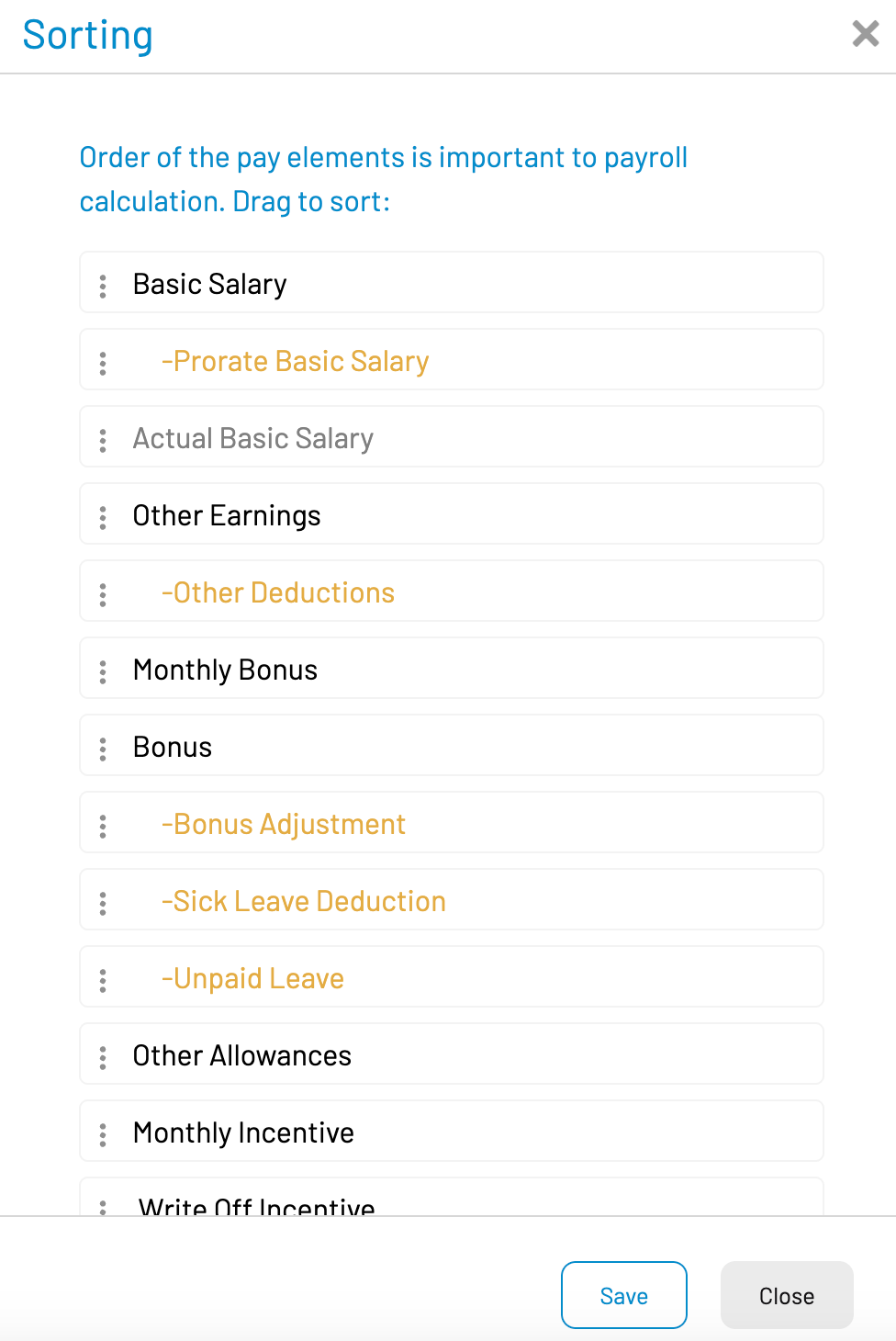
Click on each element and drag up/down and finally click “Save”