¶ E-commerce Store Setup: Banner Management
This provides instructions for managing promotional banners displayed on the home page of your online store. You can add multiple banners to feature different products or promotions.
¶ 1. Accessing the Banner Management Screen
Navigate to the Store Setup section of your administration panel.
Click on the Banners tab.
The screen displays a list of all current banners and provides options to manage them.
¶ 2. Banner List Overview
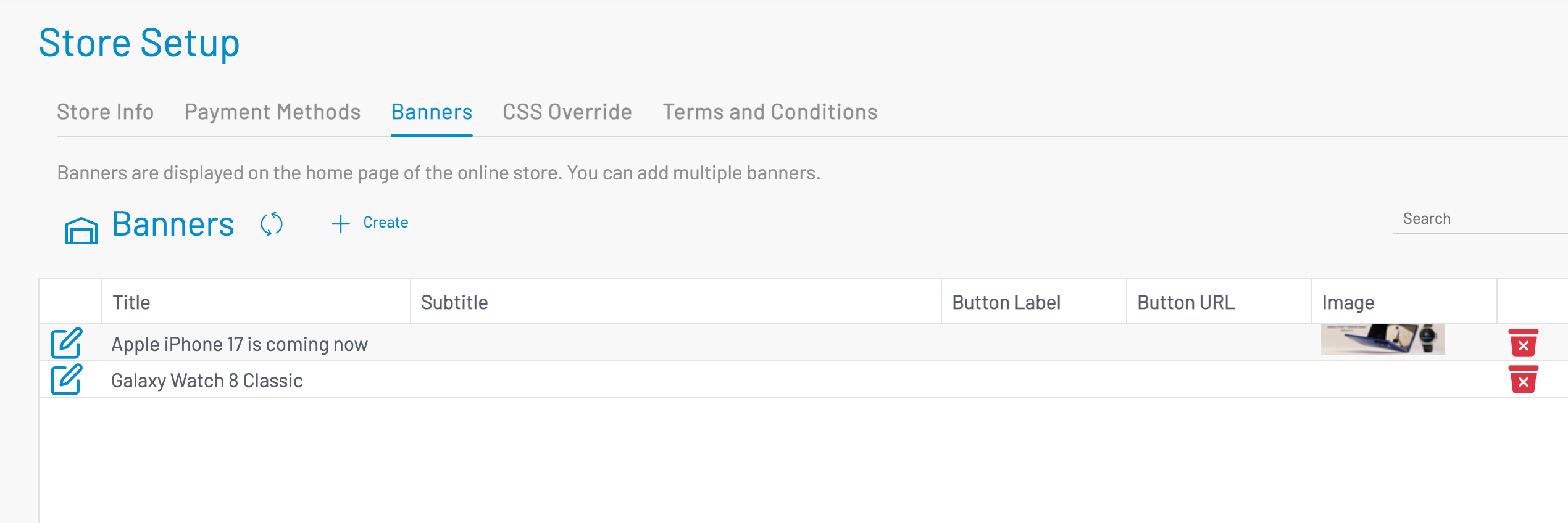
store-banner-listThe main Banners screen (store-banner-list) shows an overview of all active and scheduled banners, including the following columns:
| Column | Description |
|---|---|
| Title | The main headline text displayed on the banner. (e.g., "Apple iPhone 17 is coming now") |
| Subtitle | Secondary text or a brief description displayed below the title. |
| Button Label | The text displayed on the call-to-action button (e.g., "Shop Now"). |
| Button URL | The destination link when the button is clicked. |
| Image | A background image of the banner. |
¶ Actions
For each banner in the list, you have two primary actions:
| Icon | Action | Description |
|---|---|---|
| Pencil/Edit Icon | Edit Banner | Click the pencil icon next to a banner to open the Create Banner form and modify its details. |
| Red Trash/X Icon | Delete Banner | Click the red 'X' icon to permanently remove the banner from the list and the store homepage. Note: Always confirm deletion if prompted. |
¶ Utility Functions
Search: Use the Search box in the top right corner to filter the list of banners by title or subtitle.
Refresh: The refresh icon (circular arrows) reloads the banner list to ensure you are viewing the most current data.
¶ 3. Creating a New Banner
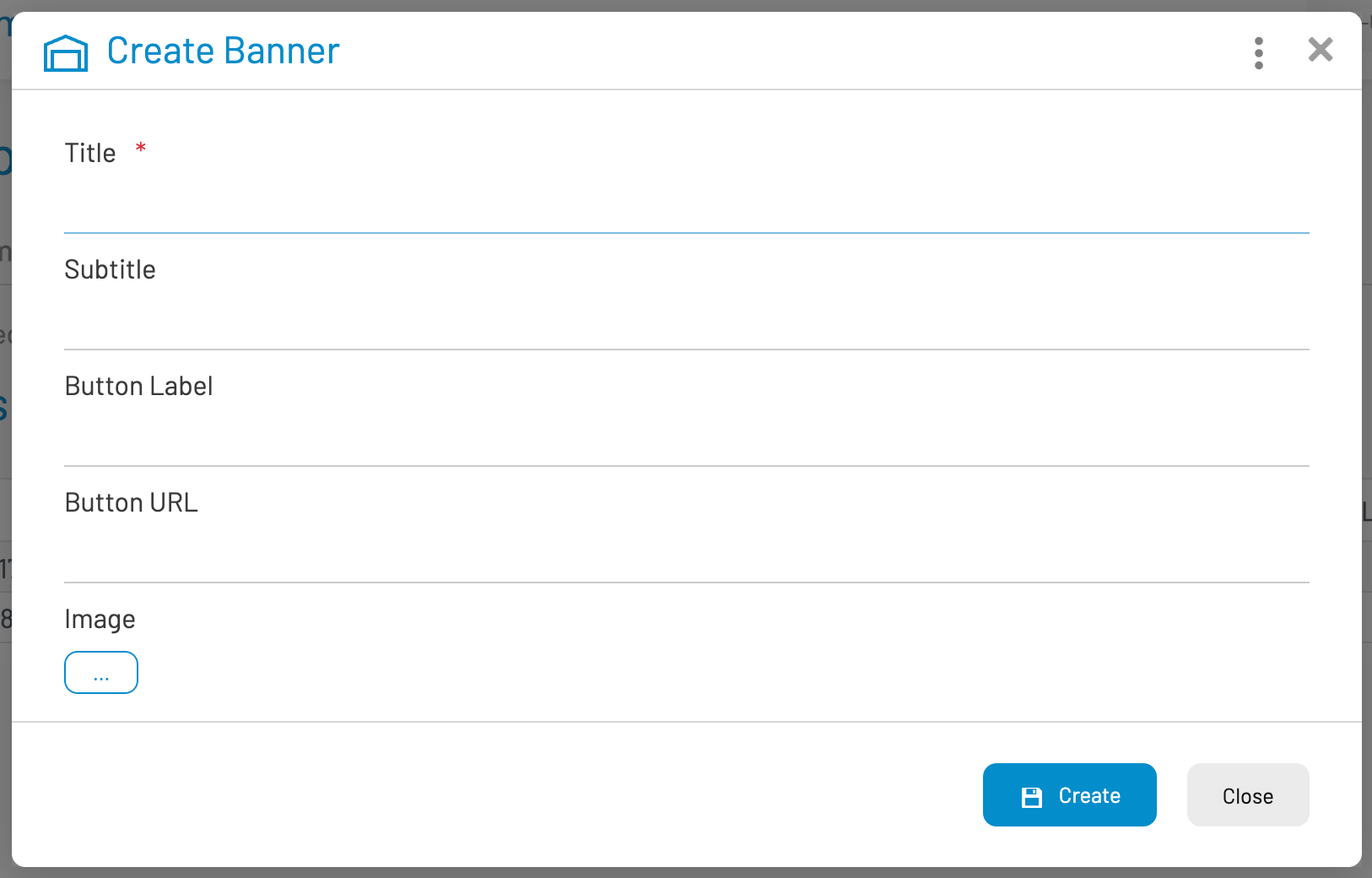
To add a new promotional banner, click the + Create button located above the banner list. This will open the Create Banner form (banner-form).
¶ Banner Creation Fields
Fill out the following fields in the Create Banner form:
| Field | Requirement | Description |
|---|---|---|
| Title | Required (marked with *) |
The main, eye-catching text for the banner. |
| Subtitle | Optional | A secondary line of text to provide more detail or context. |
| Button Label | Optional | The text that appears on the call-to-action button (e.g., "Learn More," "Pre-order Now"). Leave blank if no button is needed. |
| Button URL | Conditional | The full URL (link) where the button should direct users (e.g., /products/new-iphone). This field is only relevant if a Button Label is provided. |
| Image | Recommended | Click the "..." button to upload the image file for your banner. The image should be optimized for web display and meet the recommended dimensions (check your store theme documentation for specific sizes). |
¶ Saving and Closing
Click the Create button to save the new banner and add it to the display rotation on the store homepage.
Click the Close button to exit the form without saving any changes.
¶ 4. Editing an Existing Banner
On the Banners list screen, click the Edit Icon (Pencil) next to the banner you wish to modify.
The Create Banner form will open, pre-filled with the current banner's information.
Make the necessary adjustments to the Title, Subtitle, Button Label, Button URL, or Image.
Click the Save or Update button (this button's label may change depending on whether you are creating or editing) to apply your changes.