- Login to your app at https://your_biz_name.akas.co
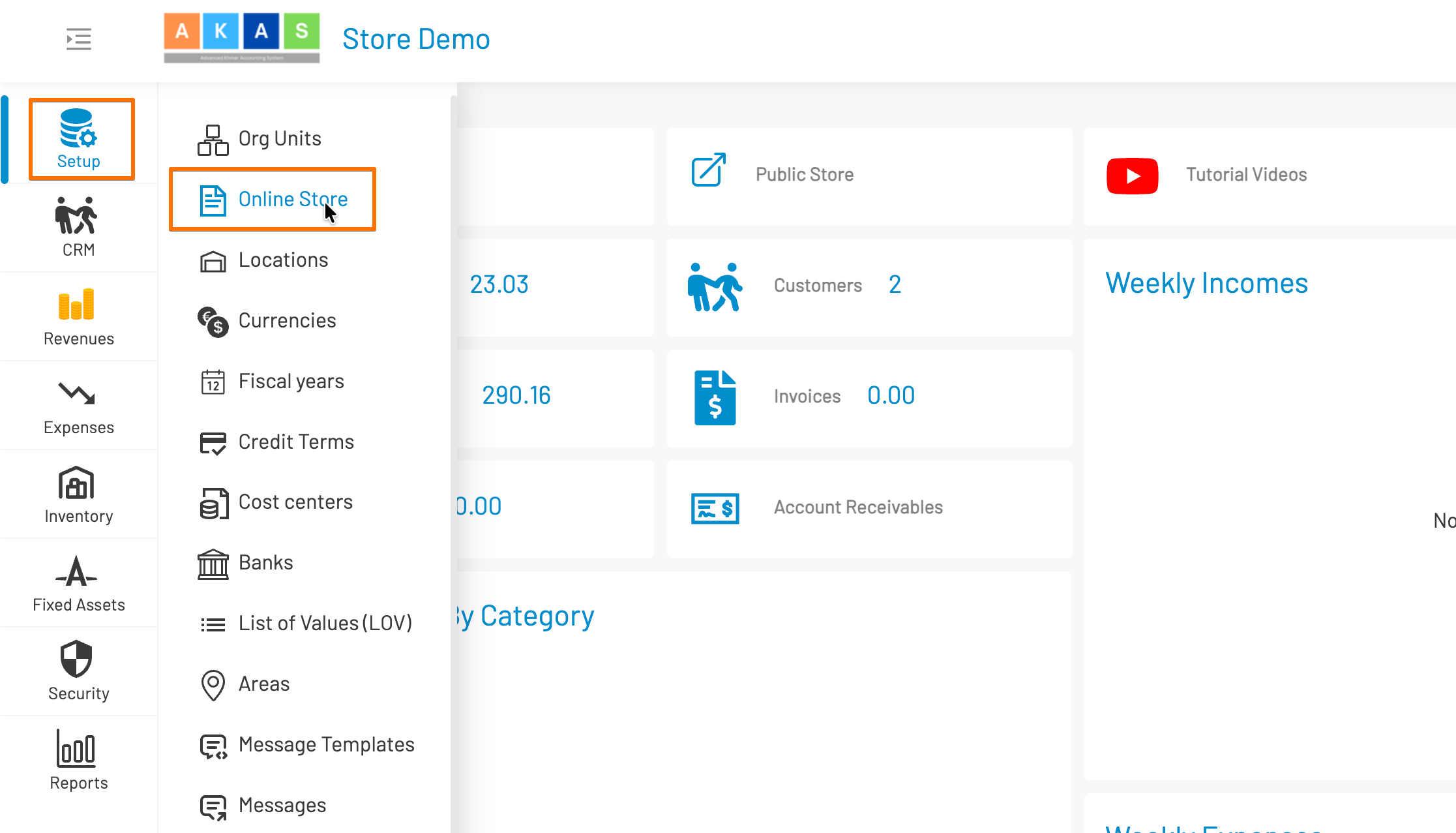
- Click “Setup” in the left side bar > Online Store
- Select tab Store Info
The Store Info tab allows you to configure your store’s basic identity, tax settings, branding colors, contact information, and communication channels. Each field is described below:
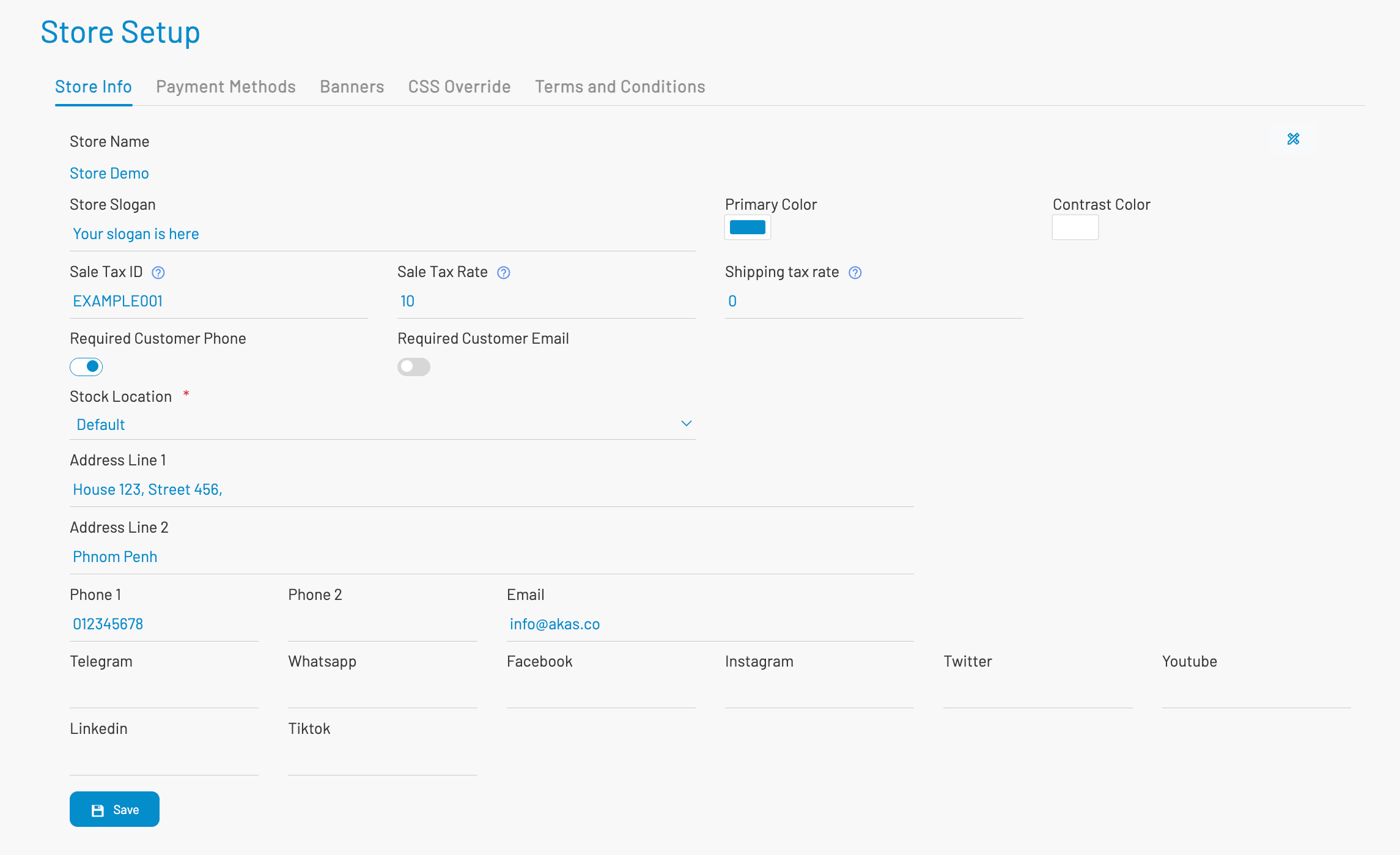
- Store Name: The official name of your online store. This name will appear on customer-facing pages and invoices. This cannot be changed here and need to go to the Admin page (where you create the business) if you need to change.
- Store Slogan: A short tagline or slogan representing your store. Optional — displayed next to the front store logo and footer.
- Sale Tax ID: Your business’s tax identification number. Used for invoices, customer receipts, and tax reporting.
- Sale Tax Rate: The standard tax (VAT or GST) percentage applied to product prices (e.g., 10 means 10%). This tax is added during customer checkout.
- Shipping Tax Rate: Tax percentage applied to shipping fees (if applicable). Set to 0 if shipping is not taxed in your region.
- Required Customer Phone A toggle switch.
- ON → Customers must provide a phone number at checkout.
- OFF → Phone number is optional.
- Required Customer Email A toggle switch.
- ON → Email is required for every order.
- OFF → Email becomes optional.
- Stock Location (Required): Select the default stock or warehouse location used to fulfill online orders. If you have multiple warehouses, choose the correct primary one.
- Address Line 1: Your store’s main physical address (street number, house/road).
- Address Line 2: Additional address information — usually the city, district, or province.
- Primary Color: The main branding color of your store. This color appears on buttons, banners, and various UI elements.
- Contrast Color: A secondary color used for text or UI highlights to ensure readability against the primary color.
- Phone 1 / Phone 2: Primary and alternate phone numbers for customer support or inquiries. It will be shown in invoices, receipts too.
- Email: The official business email displayed on the store, invoices, and notifications.
- Social Channels: Links to your store’s social media accounts. You may configure any of the following:
- Telegram
- YouTube
- TikTok
Customers may see these links on your storefront footer.
- Click Save to apply and store all changes made in this tab.
Next: Setup Store Payment Methods