GL Account Mappings
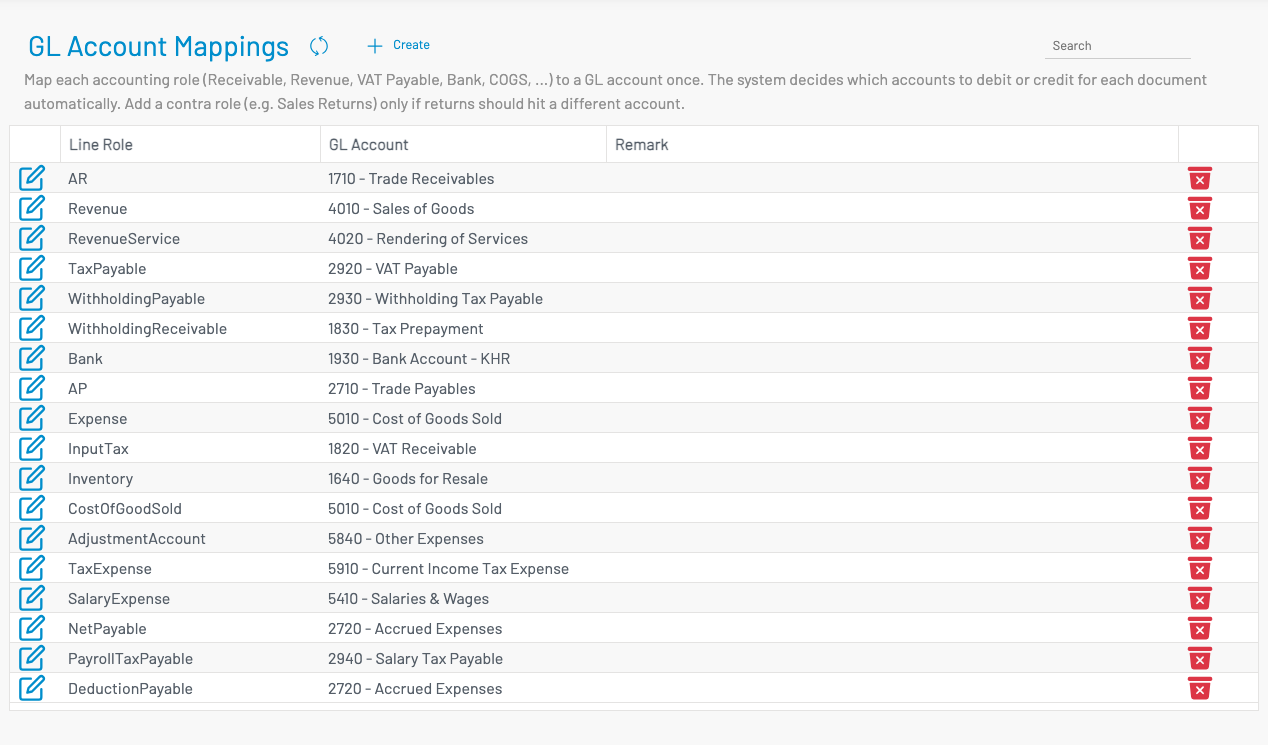
GL Account Mappings tell Accounting which Chart of Accounts account to use for each part of a business transaction (for example Accounts Receivable, Sales Revenue, VAT Payable). Without them, approving invoices, receipts, bills, and payments cannot create journal entries.
Navigation: left sidebar → Accounting → GL Account Mappings (/accounting/txn-mappings).
Why you need this
Section titled “ Why you need this”Operational modules (Revenues, Expenses, Inventory, and others) record business documents — invoices, receipts, bills, payments. The general ledger needs accounting entries (debits and credits to specific GL accounts).
AKAS does not hard-code those accounts on each document. Instead:
- Each posting breaks a document into line roles (AR, Revenue, Tax payable, Bank, AP, Expense, COGS, Inventory, and similar).
- GL Account Mappings assign a GL account to each role.
- GL Journal Mappings choose which journal the entry belongs to (Sales, Purchases, Cash, and so on).
Together, mappings are the bridge between day-to-day transactions and your books. Once configured, approving a document can post automatically — so Income Statement, Balance Sheet, and Trial Balance stay in sync without re-keying journals.
If a required role is missing or has no account, posting fails with an error such as No GL account mapping configured for role …. Map every role you use before go-live.
Example — approved sales invoice ($1,000 + $100 tax):
| Line role | Typical GL account | Effect |
|---|---|---|
| AR | Accounts Receivable | Debit total due |
| Revenue | Sales Revenue | Credit net sales |
| Tax payable | VAT Payable | Credit tax |
That produces a balanced journal entry. Change the mapping if your COA uses different account numbers — you do not need to change invoice screens.
Account mappings vs journal mappings
Section titled “ Account mappings vs journal mappings”| GL Account Mappings | GL Journal Mappings | |
|---|---|---|
| Answers | Which GL account for each line role? | Which journal for each transaction type? |
| Example | Invoice → Revenue → 4000 Sales | Invoice → Sales Journal |
Configure the Chart of Accounts and Journals first, then both mapping screens.
Configure mappings
Section titled “ Configure mappings”- Open GL Account Mappings.
- Edit each line role row.
- Select the target GL account.
- Save.
Complete the Chart of Accounts before mapping. Use Generate defaults (when available on your tenant) only as a starting point — review every account against your own COA.
After defaults are in place, use category Accounting or an expense item GL account only when a product group or purchase line must post to a different account than these mappings.