
Restaurant POS — Sale Order Operation
This manual guides the operator through taking an order, sending it to the kitchen, adding more items later, and completing payment.
You need to Login in Restaurant mode. Set up floors and tables first under Restaurant layout.
1. Starting a New Order
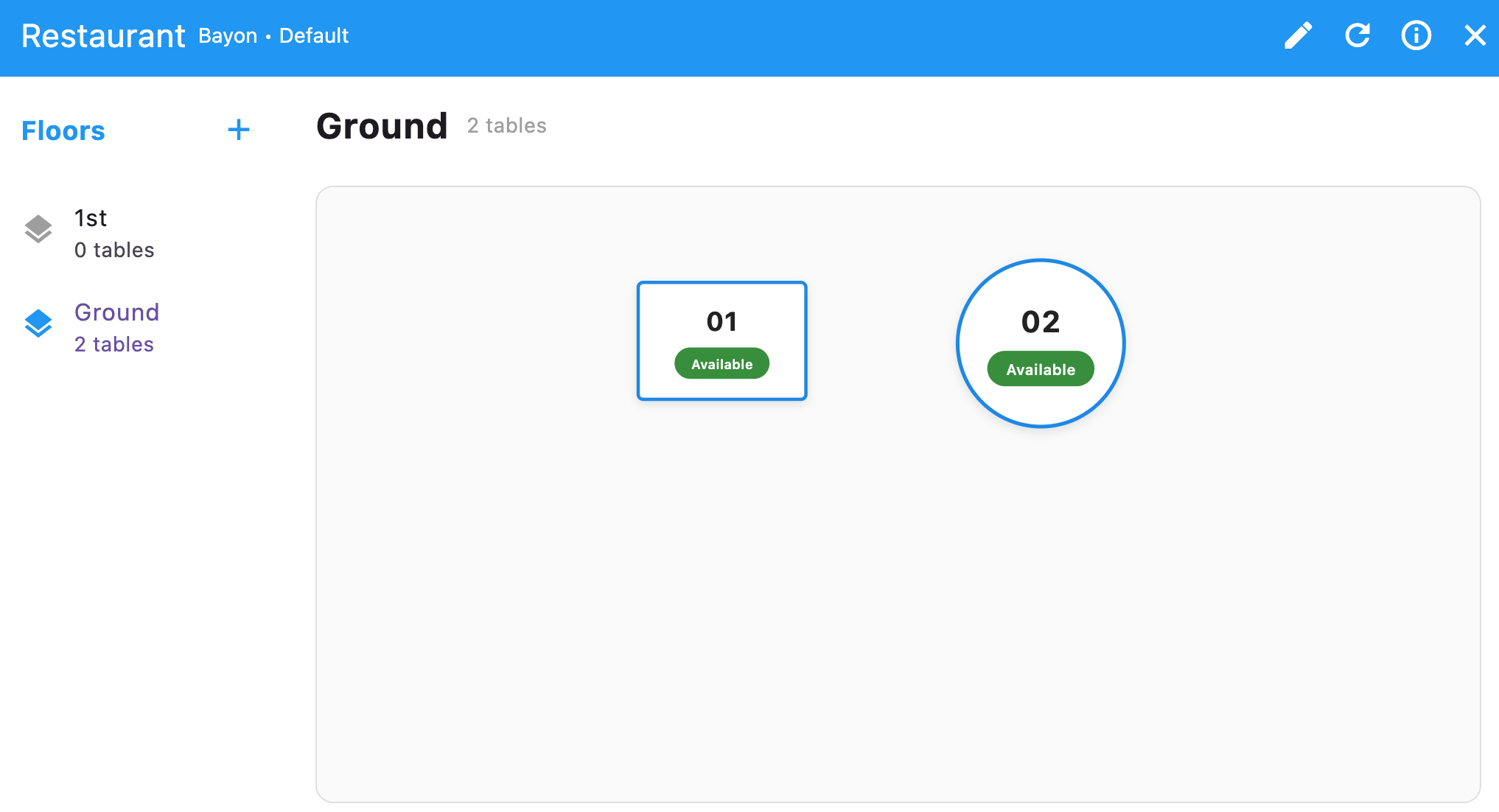
Section titled “ 1. Starting a New Order”Select a Table: From the main floor layout, tap an Available table to start an order.
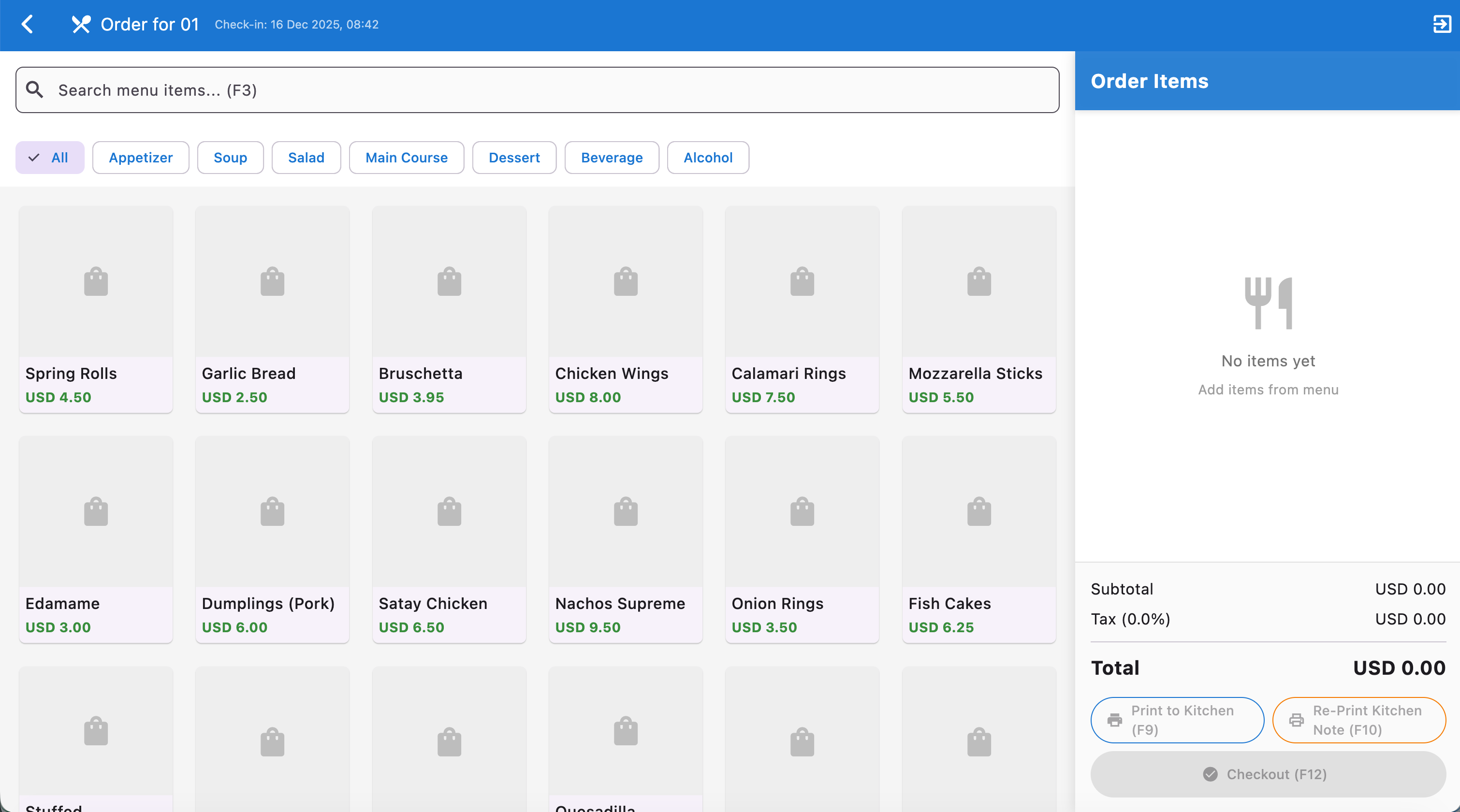
Access the Order Screen: The order screen shows the menu on the left and order items on the right.
2. Taking the Initial Order (1st time)
Section titled “ 2. Taking the Initial Order (1st time)”Add Items:
- Browse by category tabs (Appetizer, Soup, Main Course, Dessert, etc.) or use Search menu items… (F3).
- Click a menu item to add it to Order Items.
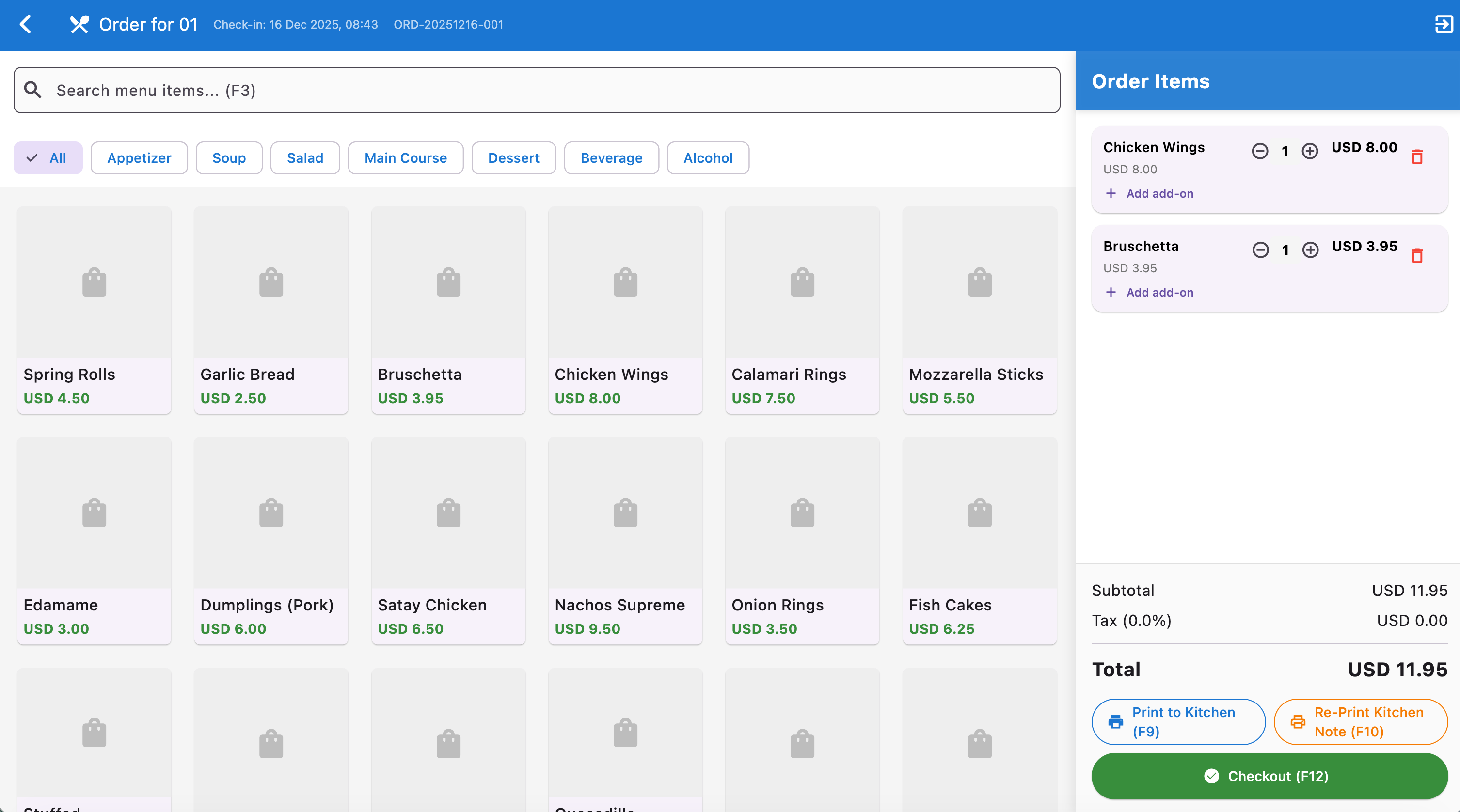
Adjust Quantity: Use +/- next to each item, or click the same item again to add.
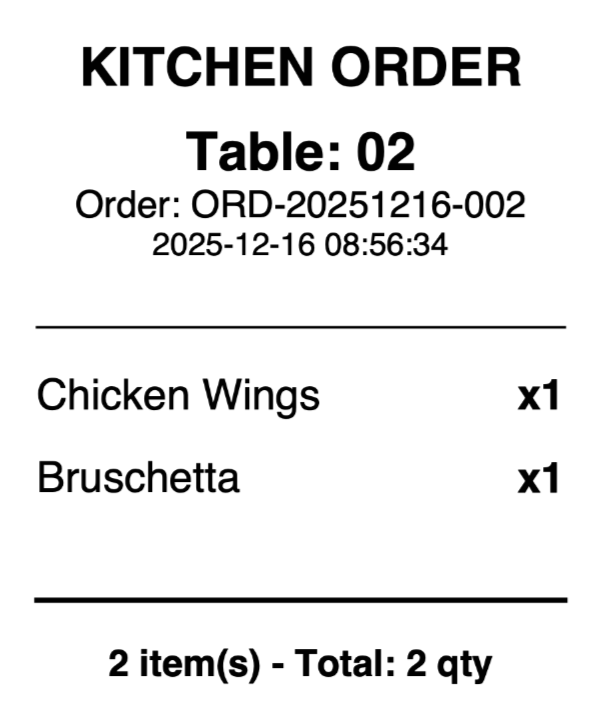
Print to Kitchen (F9): When the initial selection is ready, click Print to Kitchen (F9) to send the order to the kitchen printer.
3. Adding More Items to an Existing Order
Section titled “ 3. Adding More Items to an Existing Order”- Click the existing table on the floor layout to reopen the order.
- Add new items to Order Items.
- Click Print to Kitchen (F9) again.
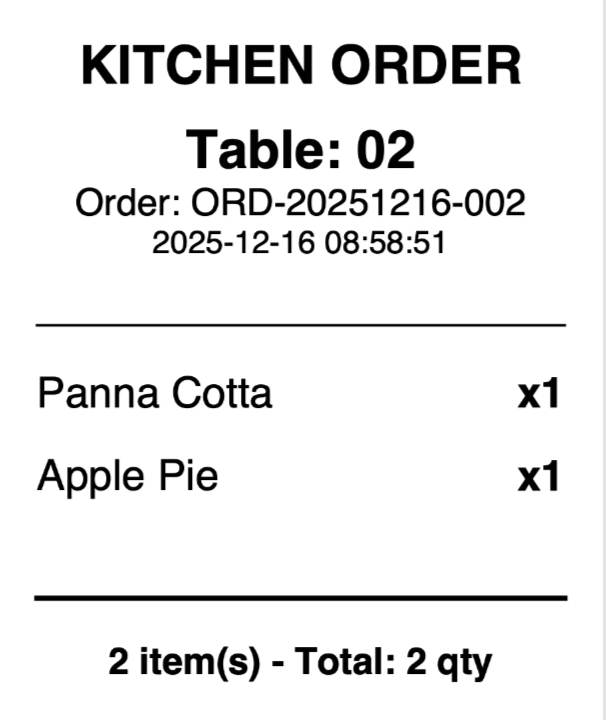
Important: The second kitchen print includes only the new items, so the kitchen does not remake the first batch.
4. Reprints and Verification
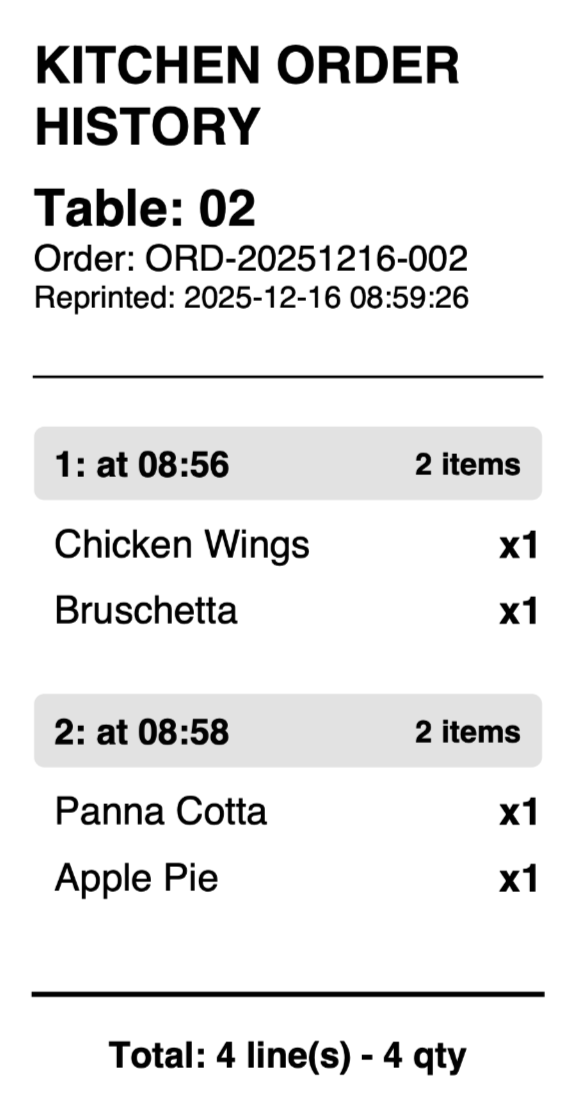
Section titled “ 4. Reprints and Verification”On the Order Screen, click Re-Print Kitchen Note (F10) for a chronological summary of all kitchen prints for that table (grouped by order version/time).
5. Completing the Payment
Section titled “ 5. Completing the Payment”- Open Floor → Table → Order, then click Checkout (F12).
- Review the Checkout screen:
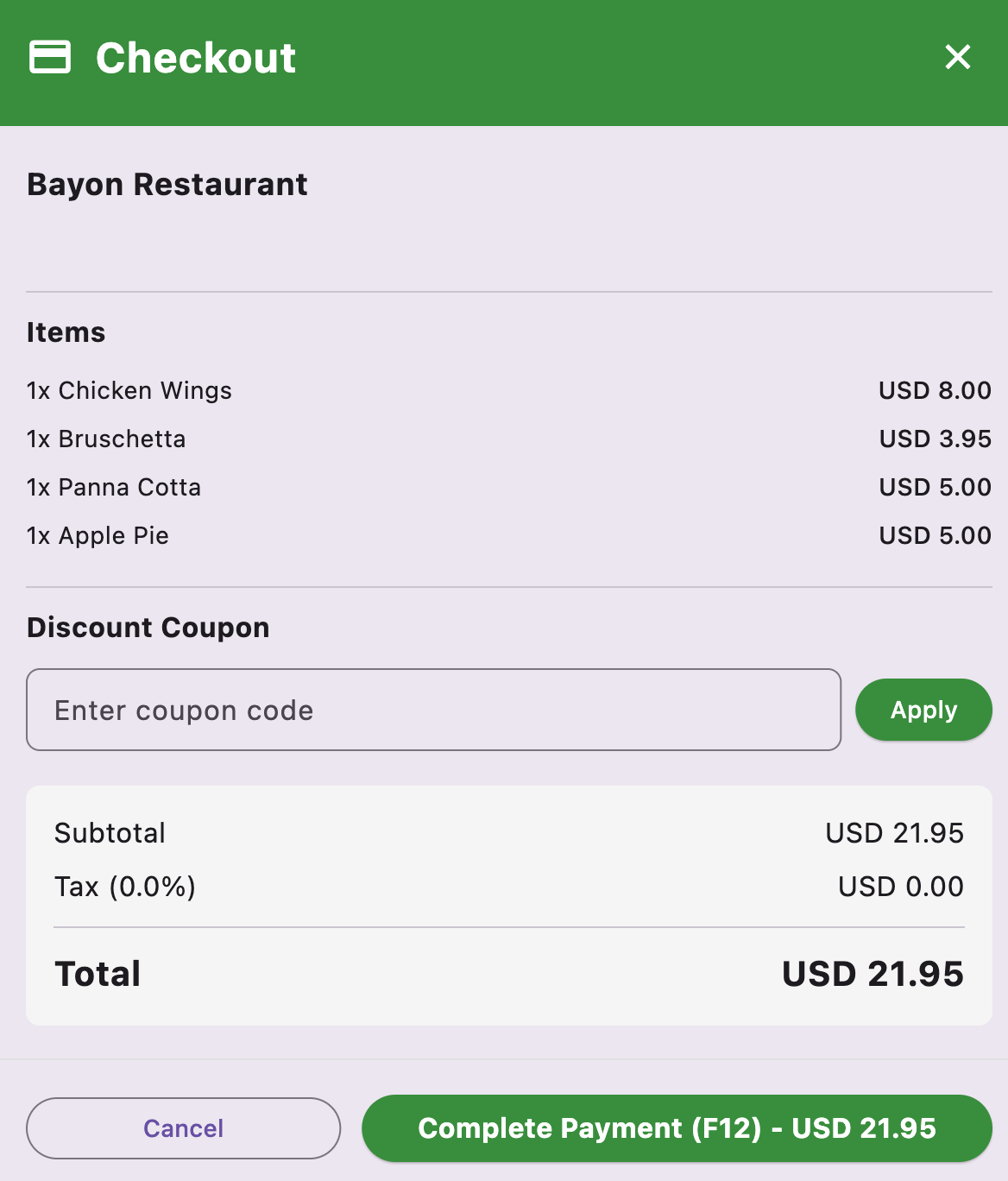
- Items — all items across order versions
- Discount Coupon — enter a code and Apply if needed
- Subtotal, Tax, Total
- Verify the Total. Ensure the customer has paid, then click Complete Payment (F12).
Note: There is no separate payment-detail screen — confirm payment before completing.
- Order Completed shows Order Number and Total Amount:
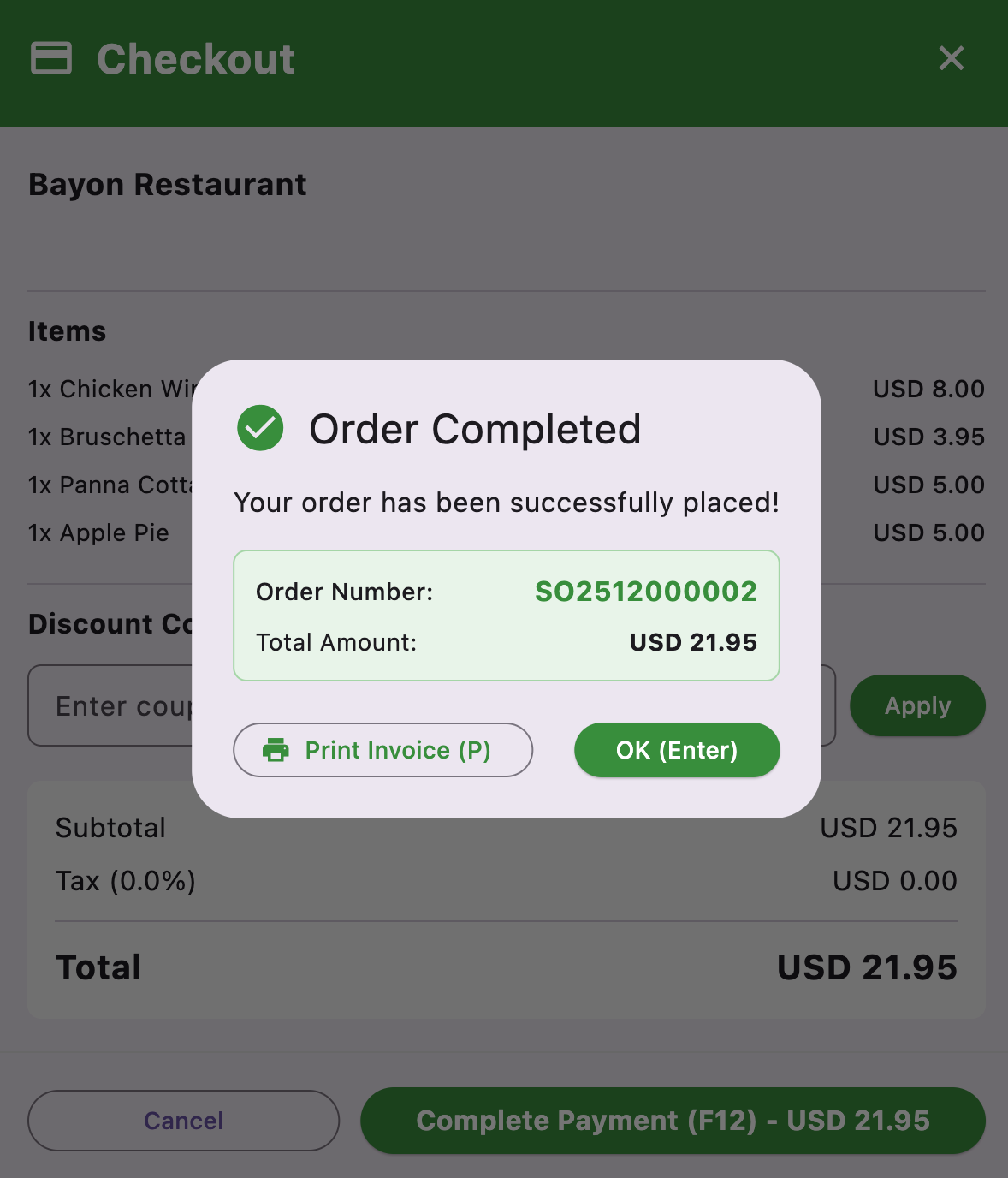
- Print Invoice (P) — customer receipt
- OK (Enter) — close and return to the floor layout; the table becomes available again