
AI Assistant
The AI Assistant helps users ask questions about business data (leave, payroll, invoices, stock, and more), with optional file attachments. Administrators turn it on with a system setting and configure API keys under AI Models.
Enable AI chat
Section titled “ Enable AI chat”- Open System → System Settings (
/system/settings). - Edit
AI_CHAT_ENABLEDand set the value totrue. - Reload the app (full page refresh) so the assistant UI appears.
When disabled (false), /assistant redirects home and the floating chat button is hidden.
See also System Settings.
Using the assistant
Section titled “ Using the assistant”Open chat
Section titled “ Open chat”You can open the assistant in two ways:
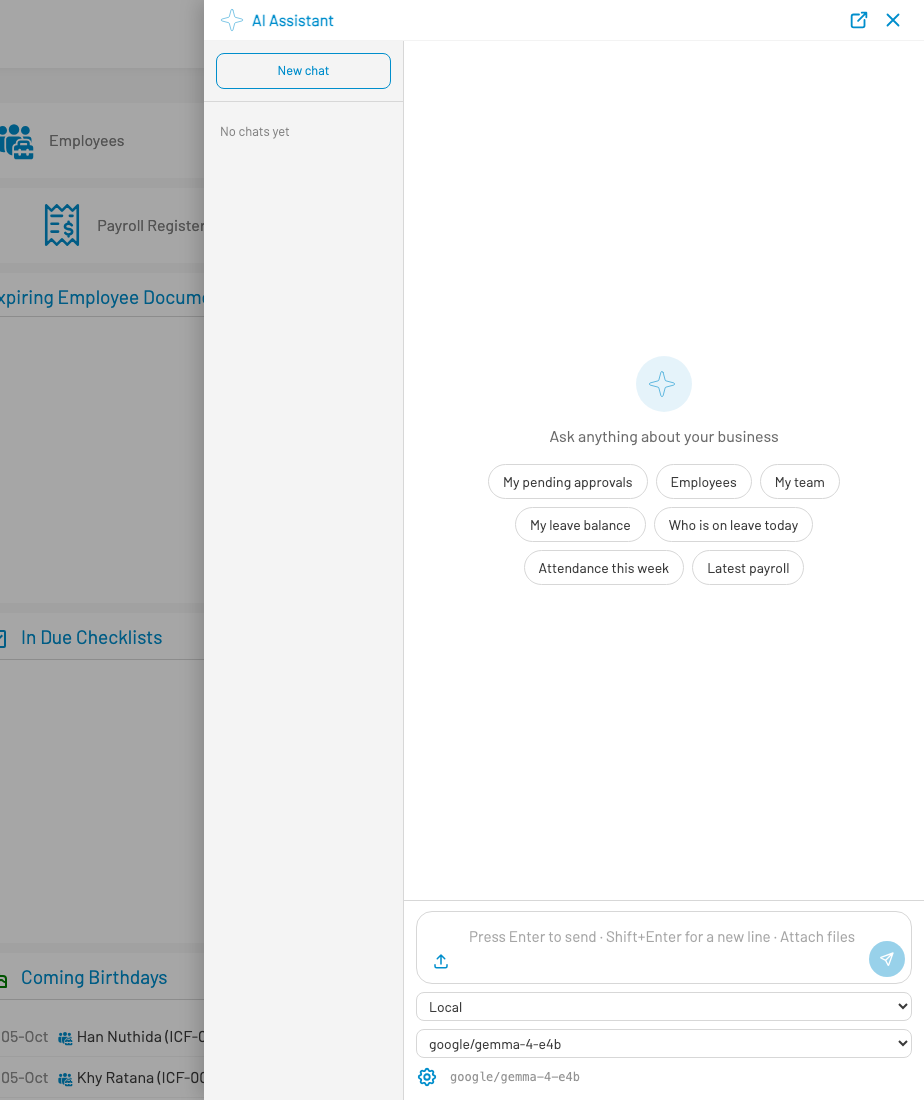
- Floating button: on any screen (except
/assistant), click the blue AI button at the bottom-right .
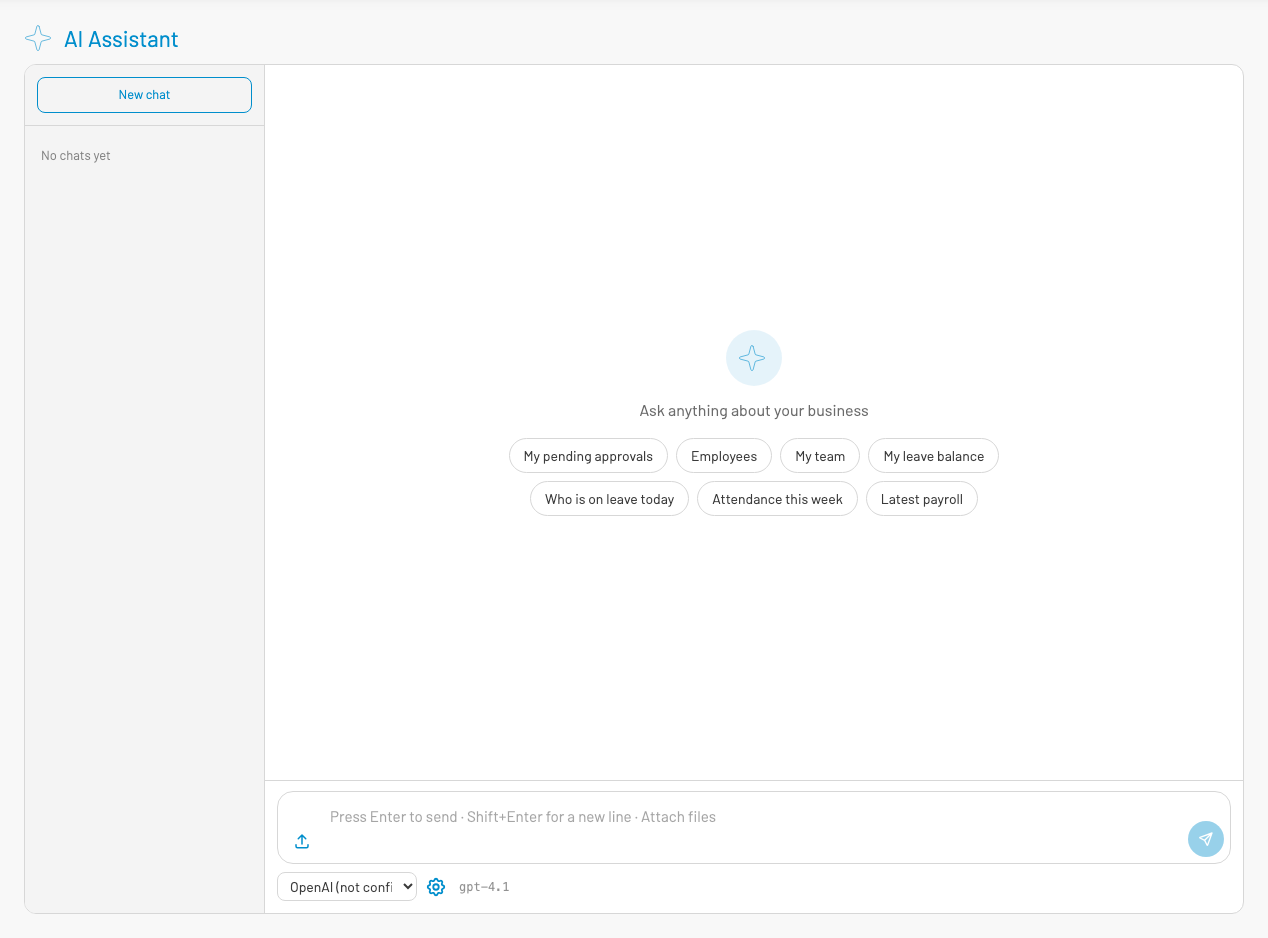
- Full page: go to
/assistant, or click Fullscreen from the floating panel header.
Ask questions
Section titled “ Ask questions”- Type a question in the composer, or click a starter chip (e.g. My leave balance, Unpaid invoices). Chips depend on enabled modules.
- Press Enter to send (Shift+Enter for a new line).
- While the model is generating, use Stop to cancel streaming to the UI (work may continue in the background).
New chat starts a fresh conversation. Previous chats appear in the left list (or the hamburger menu on mobile); you can reopen or delete them.
Attachments
Section titled “ Attachments”Use the upload control (or paste from the clipboard) to attach files with your message.
| Limit | Detail |
|---|---|
| Max files per message | 4 |
| Max size each | 8 MB |
| Supported | Images (PNG, JPEG, WebP, GIF), PDF, Word (.docx), TXT, CSV, Markdown, JSON, HTML, XML |
Provider and model
Section titled “ Provider and model”Below the composer:
- Choose a provider (OpenAI, Claude, OpenRouter, DeepInfra, Local, …). Unconfigured providers show (not configured).
- If the provider is configured, pick a model from the list.
- For OpenRouter, optionally enable Free only to list free models.
Configure API keys under AI Models (below) before cloud providers will work. Local is always available when a local OpenAI-compatible server is running.
AI model settings
Section titled “ AI model settings”Requires permission aiconfig.update.
Open settings from:
- Gear icon next to the provider/model controls in chat (edits the currently selected provider), or
- Full page
/assistant/settings(all providers on one form).
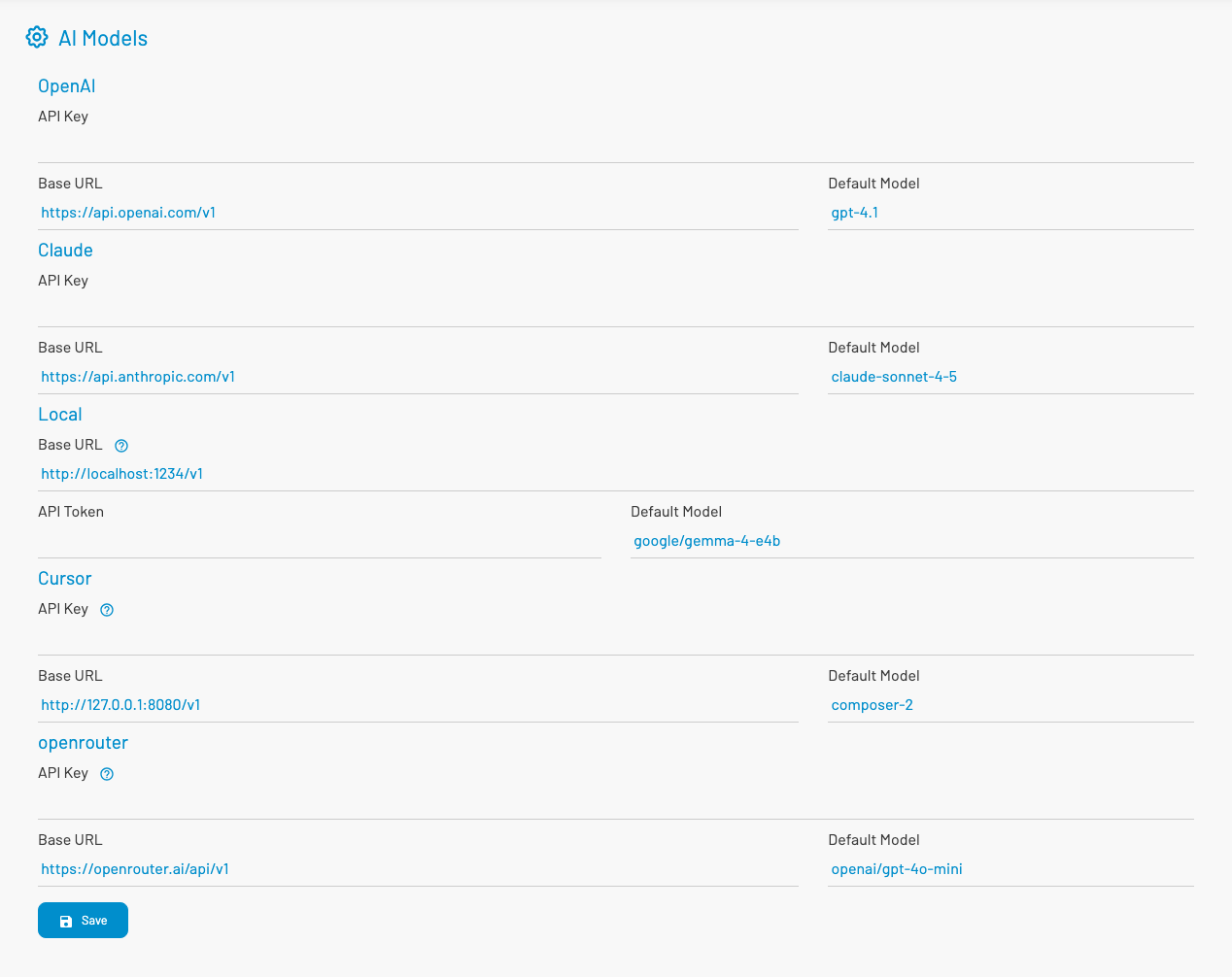
Providers
Section titled “ Providers”| Provider | Typical fields | Notes |
|---|---|---|
| OpenAI | API Key, Base URL, Default Model | Default base https://api.openai.com/v1 |
| Claude | API Key, Base URL, Default Model | Anthropic API |
| Local | Base URL, API Token, Default Model | OpenAI-compatible endpoint (e.g. LM Studio at http://localhost:1234/v1) |
| Cursor | API Key, Base URL, Default Model | Use an OpenAI-compatible Cursor proxy for chat completions (not raw api.cursor.com) |
| OpenRouter | API Key, Base URL, Default Model | Multi-model gateway; supports Free only in chat |
| DeepInfra | API Key, Base URL, Default Model | OpenAI-compatible; default base https://api.deepinfra.com/v1/openai. Only chat models are listed |
Enter keys, adjust base URL / default model if needed, then click Save.
Permissions summary
Section titled “ Permissions summary”| Permission / setting | Purpose |
|---|---|
AI_CHAT_ENABLED = true |
Show chat UI and allow assistant APIs |
aiconfig.update |
Open AI Models settings and save provider credentials |
| Signed-in user | Chat, history, attachments (subject to their data permissions) |