
Two Factor Authentication (2FA)
Two-Factor Authentication (2FA) adds an extra layer of security to your account by requiring two forms of verification when signing in. In addition to your usual username and password, 2FA asks for a second form of identification—such as a one-time code sent to your mobile device or generated by an authentication app.
This additional step helps protect your account even if your password is compromised, ensuring that only you can access your account.
Enabling 2FA is highly recommended to keep your data safe and secure. Once activated, you will be prompted to enter the verification code each time you log in from a new device or after a session expires.
- To enable 2FA, click on user profile at the top right > Profile > Two-Factor Authentication
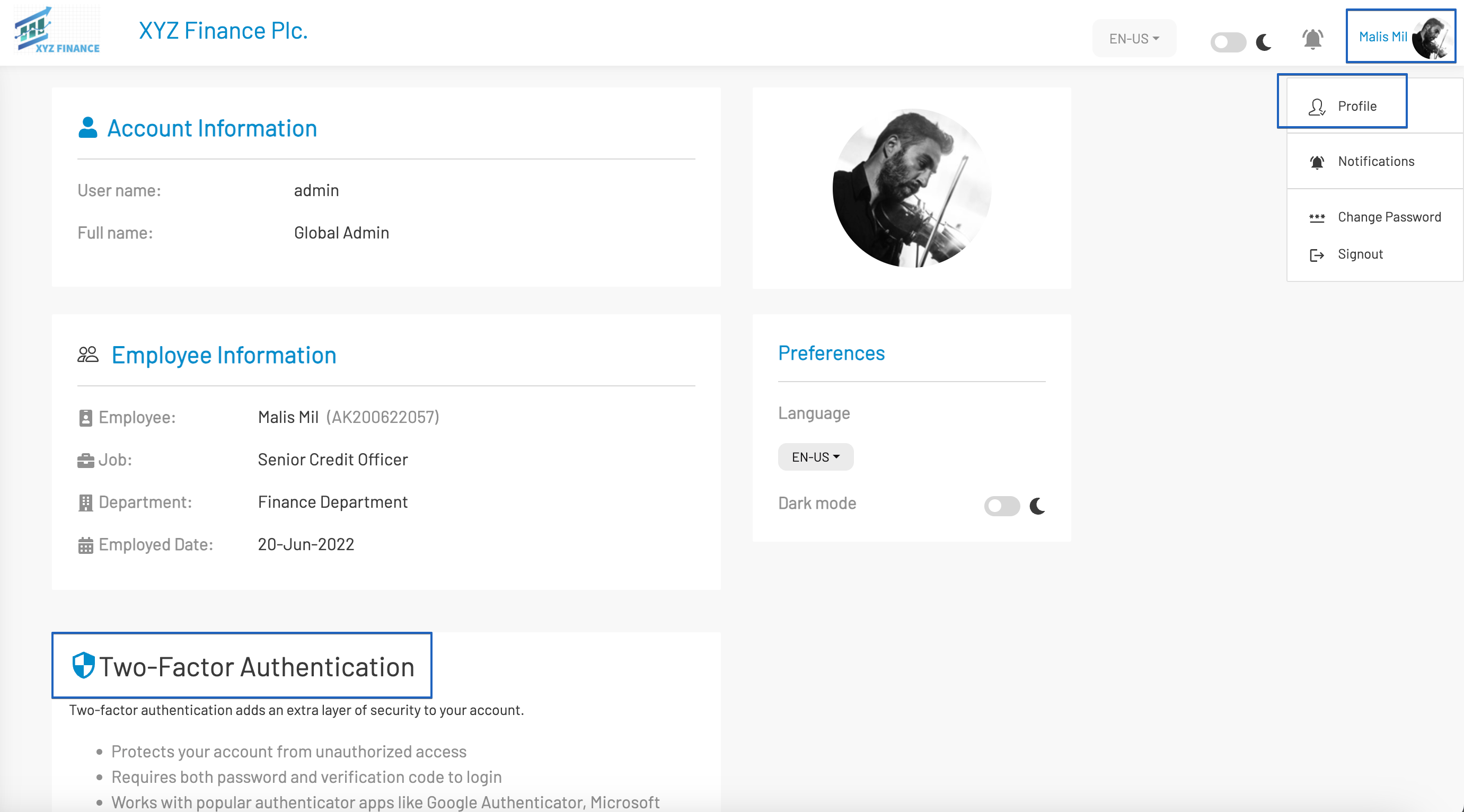
- Then click Setup Two-Factor Authentication
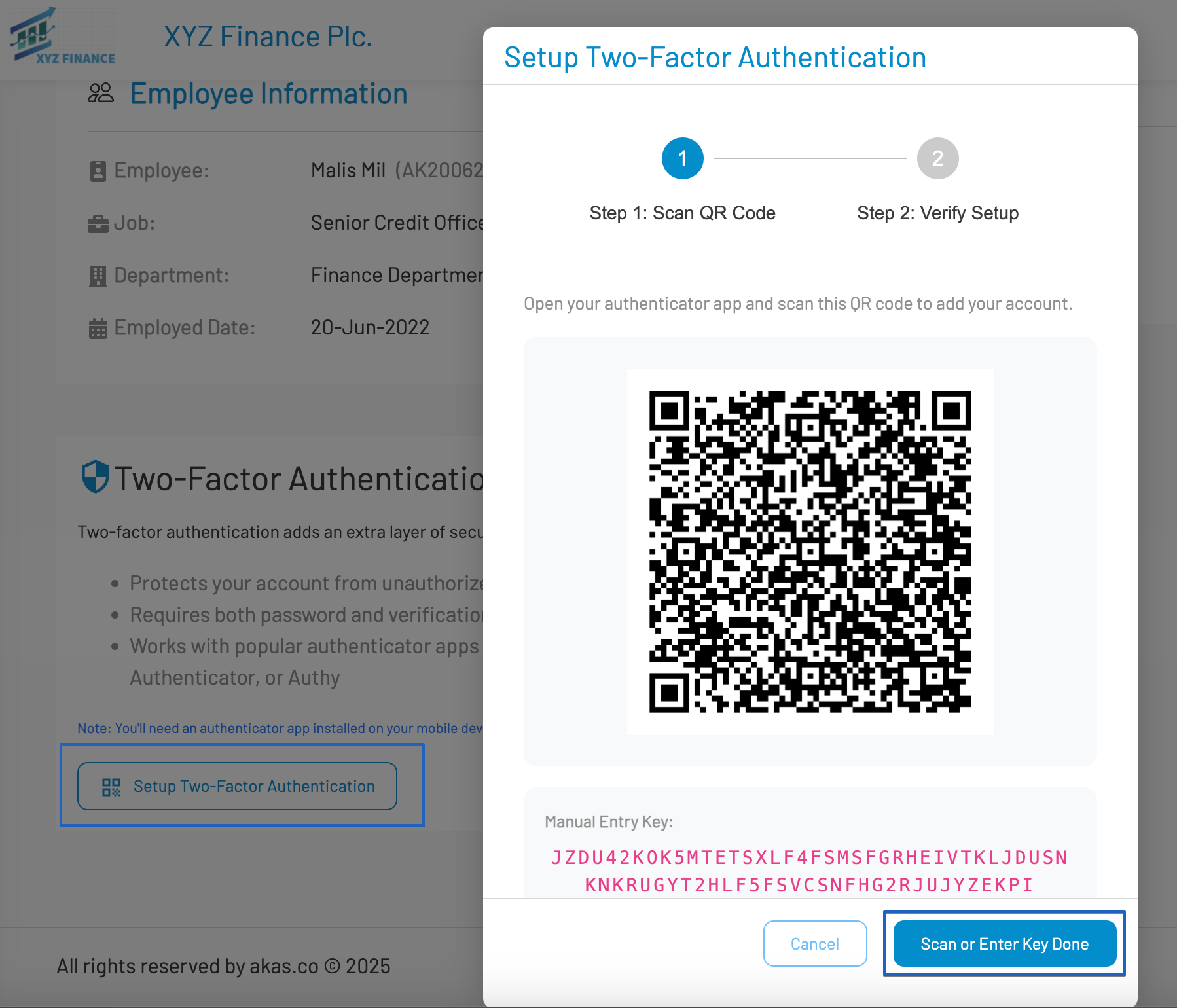
- Use your mobile Authenticator App (like Google Authenticator or Microsoft Authenticator) to scan the QR code or copy the manual entry key to paste in the Authenticator App.
- When done, click Scan or Enter Key Done
Enter the 6 digit number (from the Authenticator App) to the box and then click Enable 2FA.
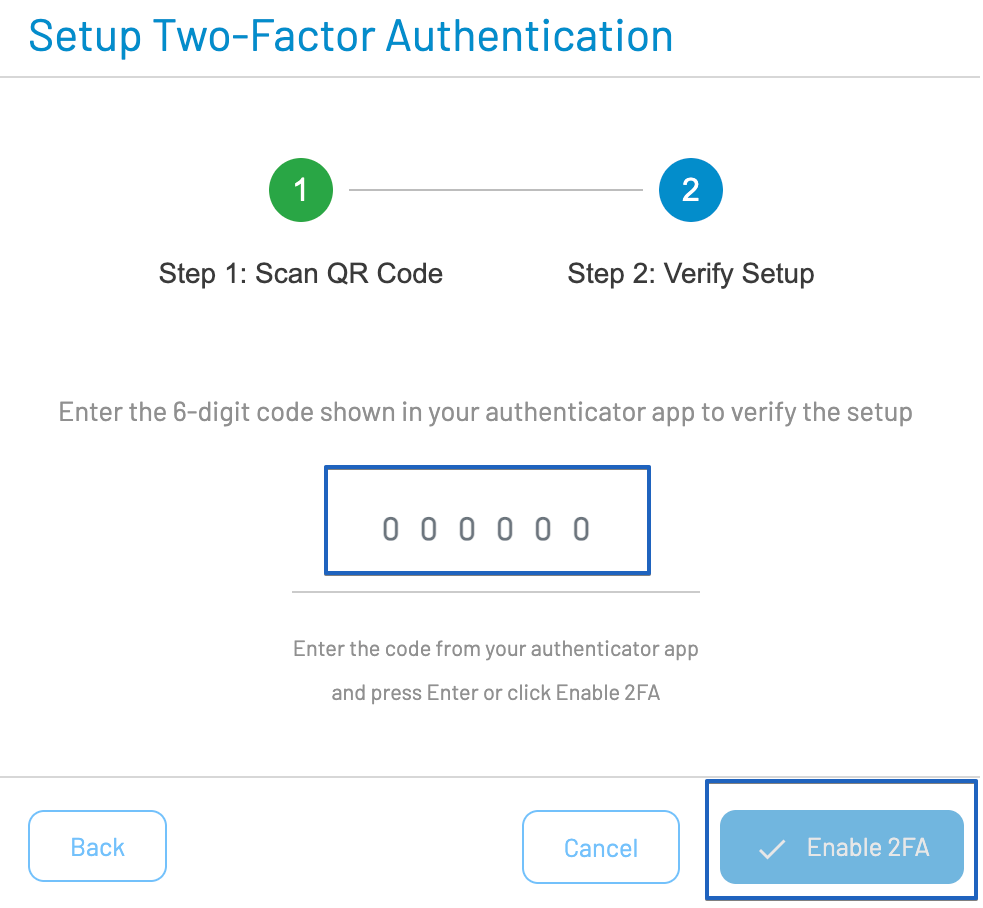
Congratulation !!! you are protected with the 2FA now. At your next logins, you will be prompted to enter the newly refreshed 6 digits from Authenticator App.