
Users
User accounts control who can sign in to AKAS. Each user is assigned one or more roles; their effective access is the combined permissions of all assigned roles.
User setup is normally performed during initial installation by the Installer or System Administrator team. Accounts should be reviewed and maintained regularly as staff join, change responsibilities, or leave the organization.
At least one user must be assigned to the built-in Administrators role. This role has full access to the system and cannot be edited or deleted.
Users can be managed through the left sidebar → Security menu → Users (/security/users).
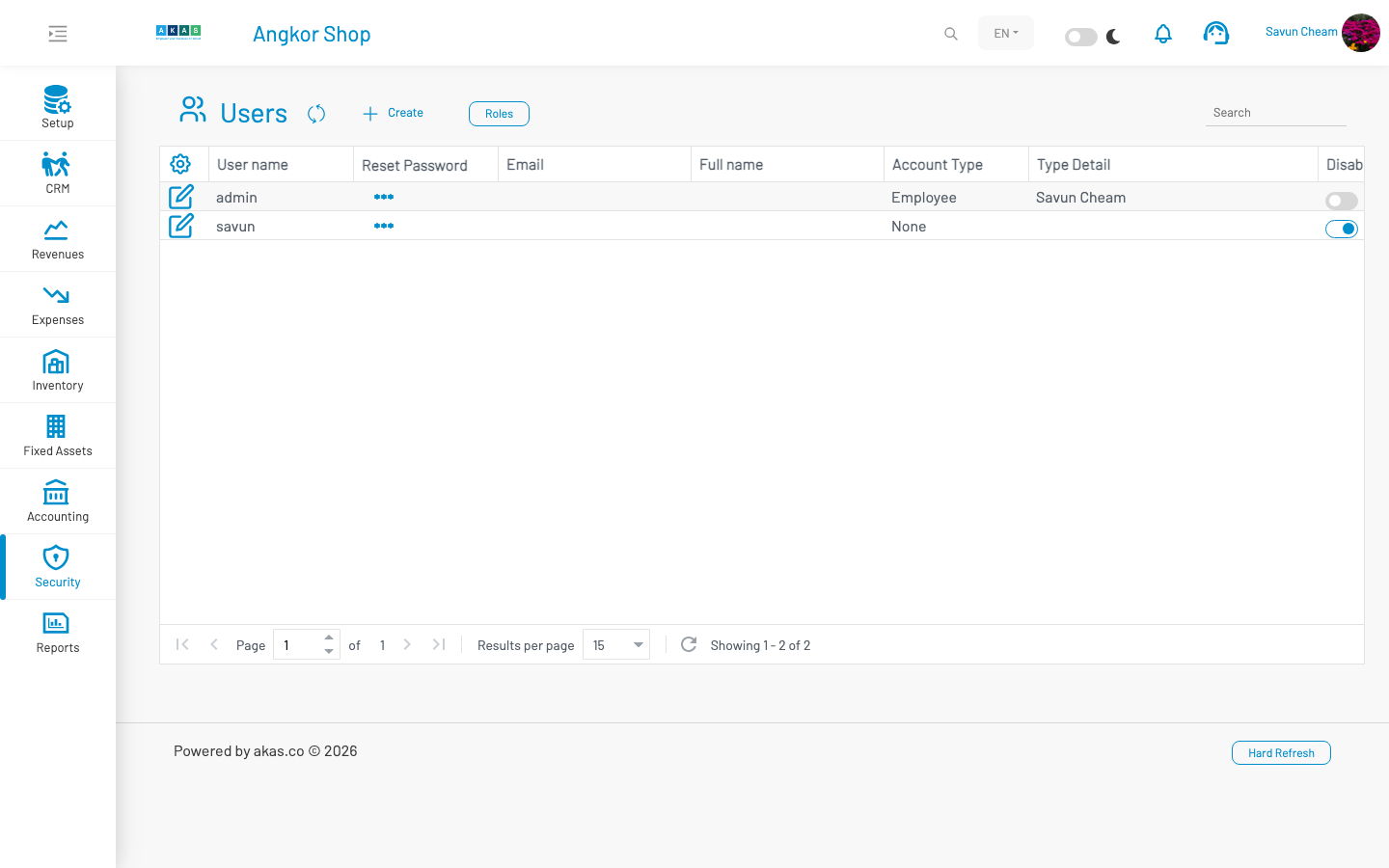
To create a new user, click the Create button to open the New User form. Fill in the form and click Save.
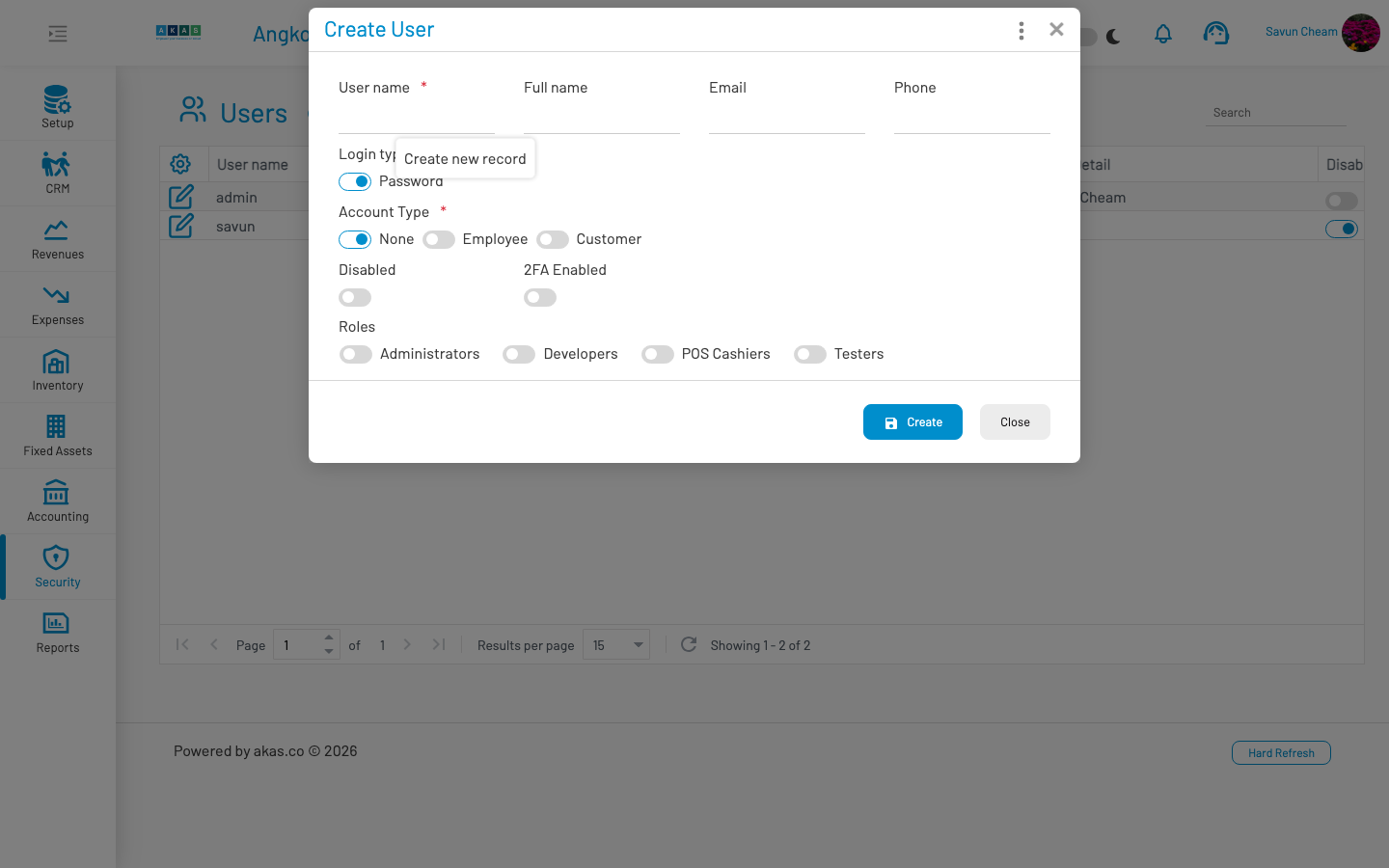
| Field Name | Type of Data | Description |
|---|---|---|
| User Name | Text (min. 3) | Unique login name used to sign in to AKAS. |
| Full Name | Text | Display name of the user. |
| Email address. Required when Login Type is Google. | ||
| Phone | Text (max 14) | Contact phone number. |
| Login Type | Selection | How the user authenticates. See options below. |
| Account Type | Selection | Links the user account to a business entity. See options below. |
| Employee | Lookup | Visible when Account Type is Employee. Select the employee record this account belongs to. |
| Customer | Lookup | Visible when Account Type is Customer (requires CRM or Revenue module). Select the customer record this account belongs to. |
| Disabled? | Boolean | When checked (YES), the user cannot sign in. |
| 2FA Enabled | Boolean (read-only) | Shows whether two-factor authentication is active for this user. |
| Roles | Checkbox list | One or more roles assigned to this user. See Roles. |
Login Type options
Section titled “ Login Type options”| Value | Description |
|---|---|
| Password | User signs in with a username and password. An administrator can reset the password from the user list or user form. |
| User signs in with a Google account. A valid email address is required. | |
| Windows | User signs in using Windows authentication. |
Account Type options
Section titled “ Account Type options”| Value | Description |
|---|---|
| None | A general system user not linked to an employee or customer record. |
| Employee | Links the account to an HR employee record. Used for staff who need access to HR and other internal modules. |
| Customer | Links the account to a CRM customer record. Used for external portal or customer self-service access (when CRM or Revenue module is enabled). |
User list actions
Section titled “ User list actions”From the Users list, administrators can:
Reset Password — Available for users with Login Type Password. Opens a dialog to set a new password.
Roles — Navigate to the Roles list.
Disable All Separated Employees — Available when the HR Personnel module is enabled. Disables login accounts linked to employees who have been marked as separated.
Note: New users with Login Type Password receive an initial password set by the administrator. Users should change their password after first login. Disabling a user account is preferred over deleting it when someone leaves the organization, as this preserves audit history while preventing access.
See also
Section titled “ See also”Roles — Create and manage role definitions
Permissions — Configure what each role can do
API Keys — External API access (not interactive login accounts)