
Employment Rotaion
Employee Rotation records a change in job assignment for one or more employees — such as a promotion, transfer, or reclassification. A rotation creates a new employment record with the updated job title, org unit, and pay elements while preserving job history.
Rotations can be performed individually (from an Employment Record → New Job) or in bulk from the Employees list.
Batch rotation
Section titled “ Batch rotation”Open batch rotation from HR → Personnel → Employees → header menu (⋯) → Employee Batch Rotation.
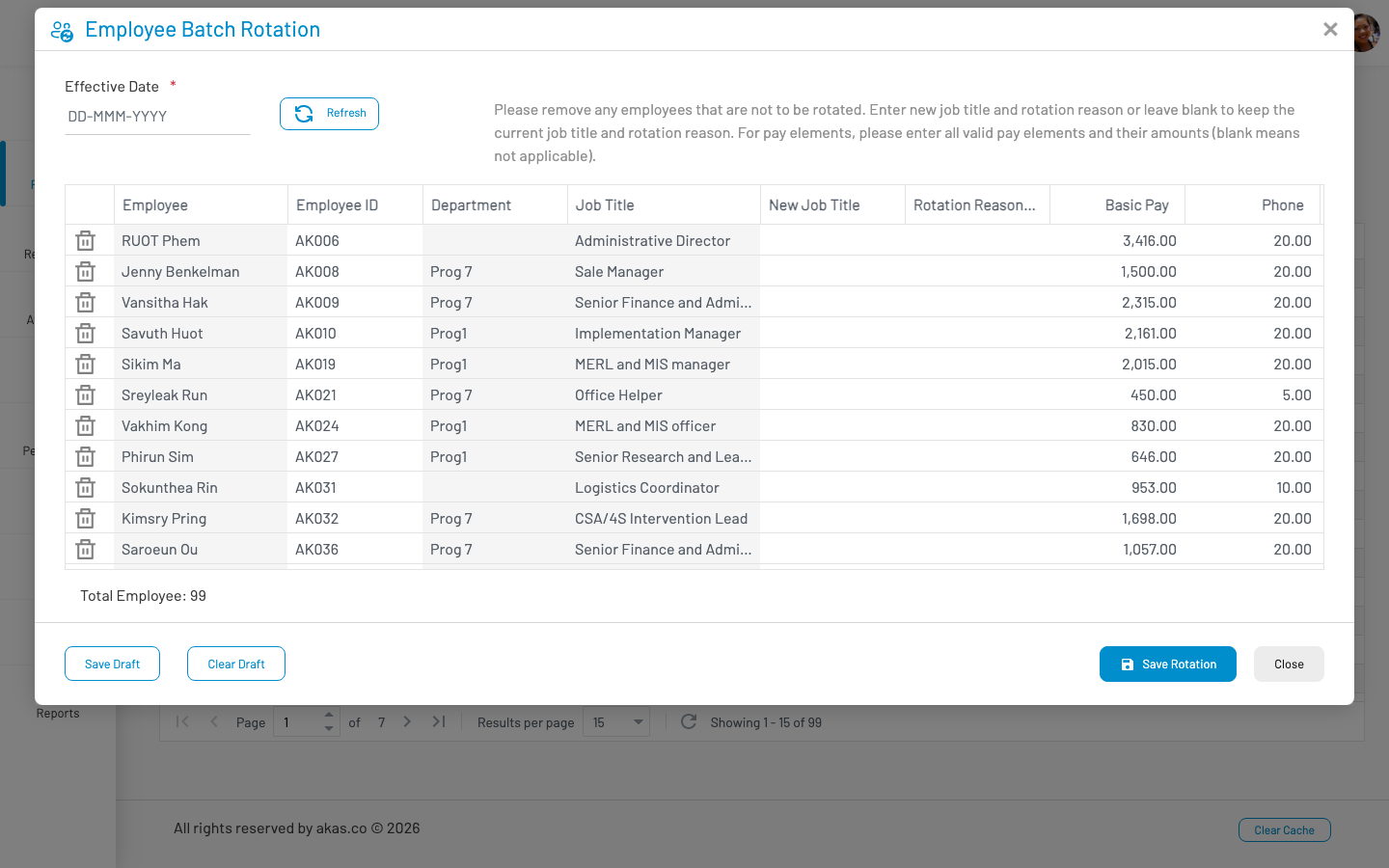
| Field Name | Type of Data | Description |
|---|---|---|
| Effective Date | Date | Date the rotation takes effect for all selected employees. Required. |
| Employees grid | Master-detail | Active employees loaded automatically. |
Per-employee grid columns
Section titled “ Per-employee grid columns”| Column | Description |
|---|---|
| Full Name | Employee name (read-only). |
| Employee ID | Employee ID (read-only). |
| Department | Current department (read-only). |
| Job Title | Current job title (read-only). |
| New Job Title | Select a new job title; leave blank to keep current. |
| Rotation Reason | Reason for rotation (LOV 44). |
| Pay element columns | Dynamic columns for each active pay element; enter new amounts. |
Batch rotation actions
Section titled “ Batch rotation actions”| Action | Description |
|---|---|
| Save Rotation | Apply rotations and create new employment records. |
| Save Draft | Save current grid data to browser local storage for later completion. |
| Clear Draft | Remove saved draft data. |
| Refresh | Reload employee and pay element data from the server. |
Note: Batch rotation copies work schedules and leave quotas from the current employment to the new record. Pay element amounts are updated from values entered in the grid. Use Save Draft if you need to complete the rotation over multiple sessions.
Individual rotation
Section titled “ Individual rotation”To rotate a single employee:
Open the employee’s Employment Record (briefcase icon on the Employees list).
Click New Job.
Enter the new job details including Rotation Reason (LOV 44).
Save.