
Data Logs
Data Logs provide an audit trail of important system activity — such as successful logins and record updates — so administrators can review who changed what and when. Use this page when investigating unexpected changes, verifying user activity, or exporting audit history for compliance.
Navigation: left sidebar → Setup → Data Logs (/system/datalogs).
Overview
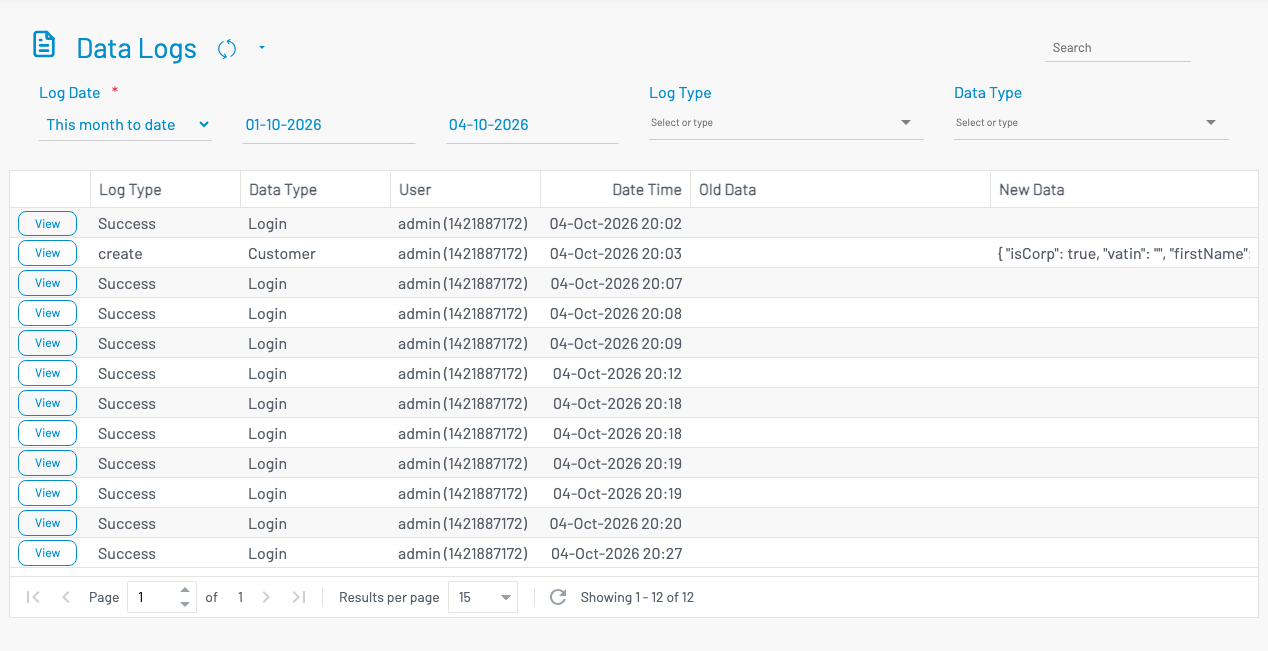
Section titled “ Overview”The Data Logs screen lists recorded events in a filterable table. Each row shows the log type, data type, user, timestamp, and a preview of old/new data where applicable.
Filters
Section titled “ Filters”Use the filter bar above the table to narrow results:
Log Date (required): Choose a date range preset (for example, This month to date) or pick a custom from/to date.
Log Type: Filter by event kind (for example, Success, update). Options are loaded from the system.
Data Type: Filter by the entity or activity category (for example, Login, Item).
After adjusting filters, the table refreshes to show matching log entries. Use Search to further narrow visible rows.
List columns
Section titled “ List columns”| Column | Description |
|---|---|
| View | Opens the full data log detail dialog for that row. |
| Log Type | The kind of event recorded (e.g. Success, update). |
| Data Type | The subject of the log (e.g. Login, Item). |
| User | The user name and internal user ID who performed the action. |
| Date Time | When the event was recorded. |
| Old Data | Previous value(s) before the change (when available). |
| New Data | New value(s) after the change (when available). |
Viewing log details
Section titled “ Viewing log details”Click View on a row to open the Data Log detail dialog.
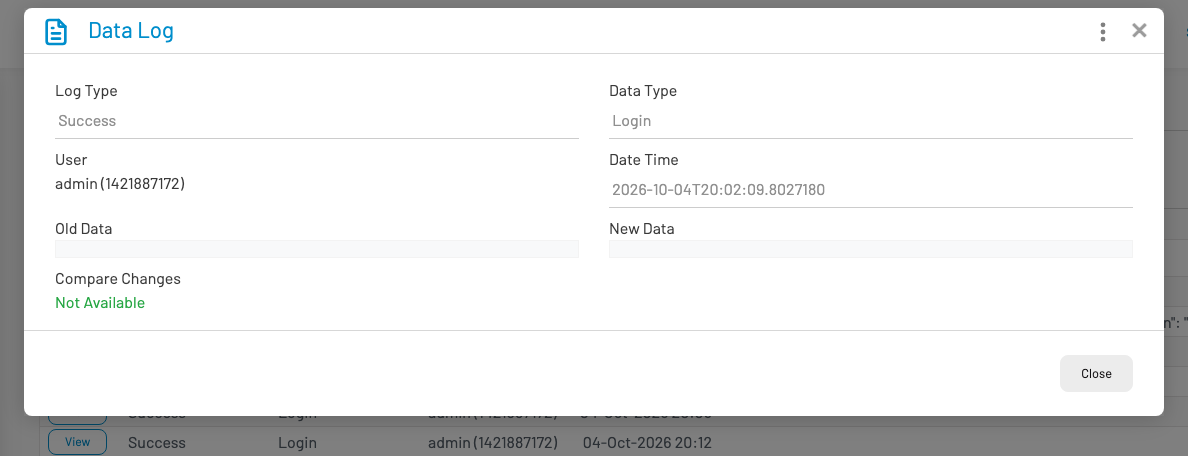
The detail view shows the same metadata as the list, plus formatted Old Data and New Data panels. When both sides contain structured JSON, the Compare Changes section highlights added, removed, or updated fields. If there is nothing to compare (for example, a login event), Compare Changes shows Not Available.
Click Close to return to the list.
Export
Section titled “ Export”If export is enabled for your account, use the table export action to download filtered data logs (file name prefix: datalogs). Apply the date and type filters first so the export matches what you see on screen.
Permissions
Section titled “ Permissions”Access requires the Data Logs list permission (sysdatalog.list). Contact a system administrator if the menu item is not visible.