
Job Requisitions
Job requisitions request an open position via employee self-service or admin data entry. After approval, the role can appear on the public vacancies page and you can manage applications.
Self Service: Employees with jobreqess.create raise a Job Requisition from Dashboard → Self Service → Job Requisition (/self-service/job-requisition). After submit/approval, it appears in this list.
Navigation: left sidebar → HR → Recruitment → Job Requisitions (/recruitment/job-reqs).
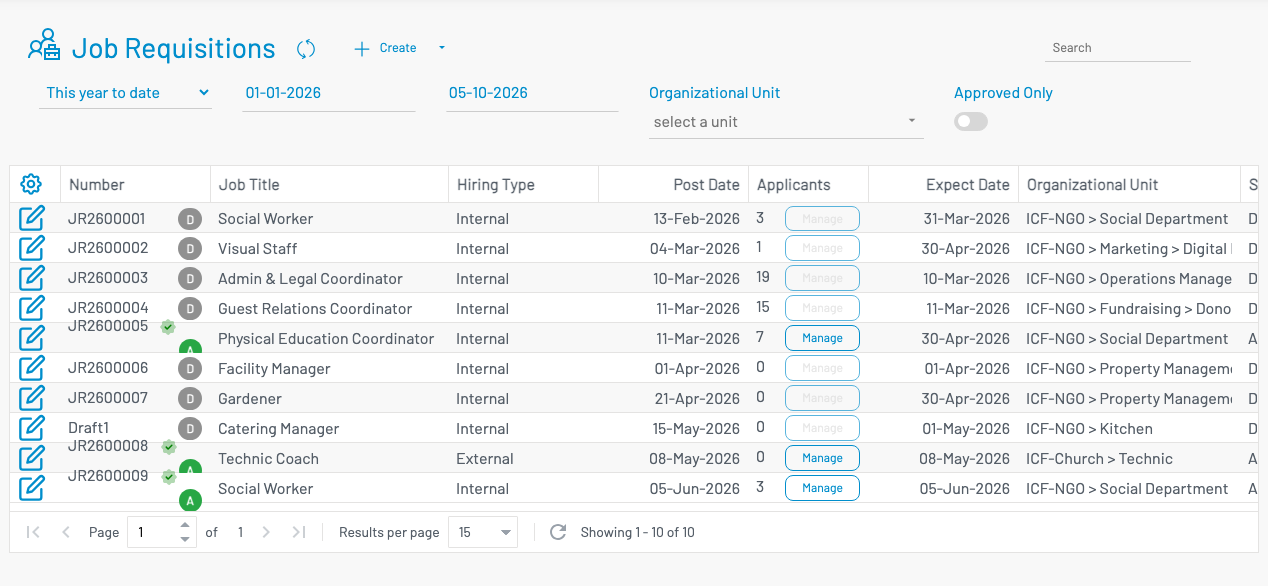
List columns
Section titled “ List columns”| Column | Description |
|---|---|
| Number | Requisition number (auto). Status badges show draft / approved / active. |
| Job Title | Requested position. |
| Hiring Type | Internal or External. |
| Post Date | When the vacancy is posted. |
| Applicants | Applicant count and Manage (enabled after approval). |
| Expect Date | Expected employment date. |
| Organizational Unit | Hiring org unit. |
Filters: date range (post date), Organizational Unit, and Approved Only.
Create a job requisition
Section titled “ Create a job requisition”Click + Create.
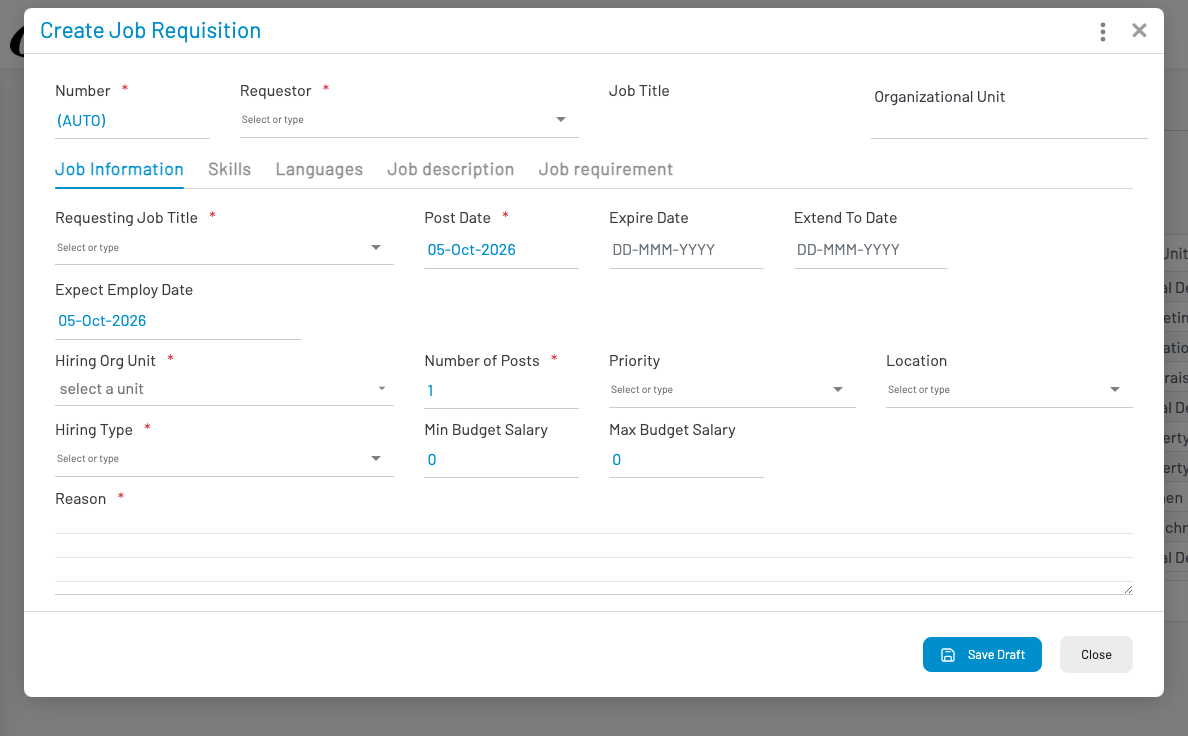
Header fields include Number (AUTO), Requestor, Job Title, and Organizational Unit.
On the Job Information tab, fill at least:
- Requesting Job Title, Post Date, Hiring Org Unit, Number of Posts, Hiring Type, Reason
- Optional: expire / extend / expect dates, priority, location, min/max budget salary
Other tabs:
- Skills / Languages — required skills and language levels
- Job description / Job requirement — rich-text content shown on the public job page
Click Save Draft. Submit / approve through your usual approval workflow. Approved requisitions show a checkmark; Manage becomes available for applications.
Manage applicants
Section titled “ Manage applicants”On an approved row, click Manage in the Applicants column to open Job applications for that requisition.