
Translations
Translations let administrators overwrite or customize built-in UI labels for each supported language. Default strings ship with the application; entries on this page override those defaults for your tenant.
Navigation: left sidebar → Setup → Translations (/system/translations).
Overview
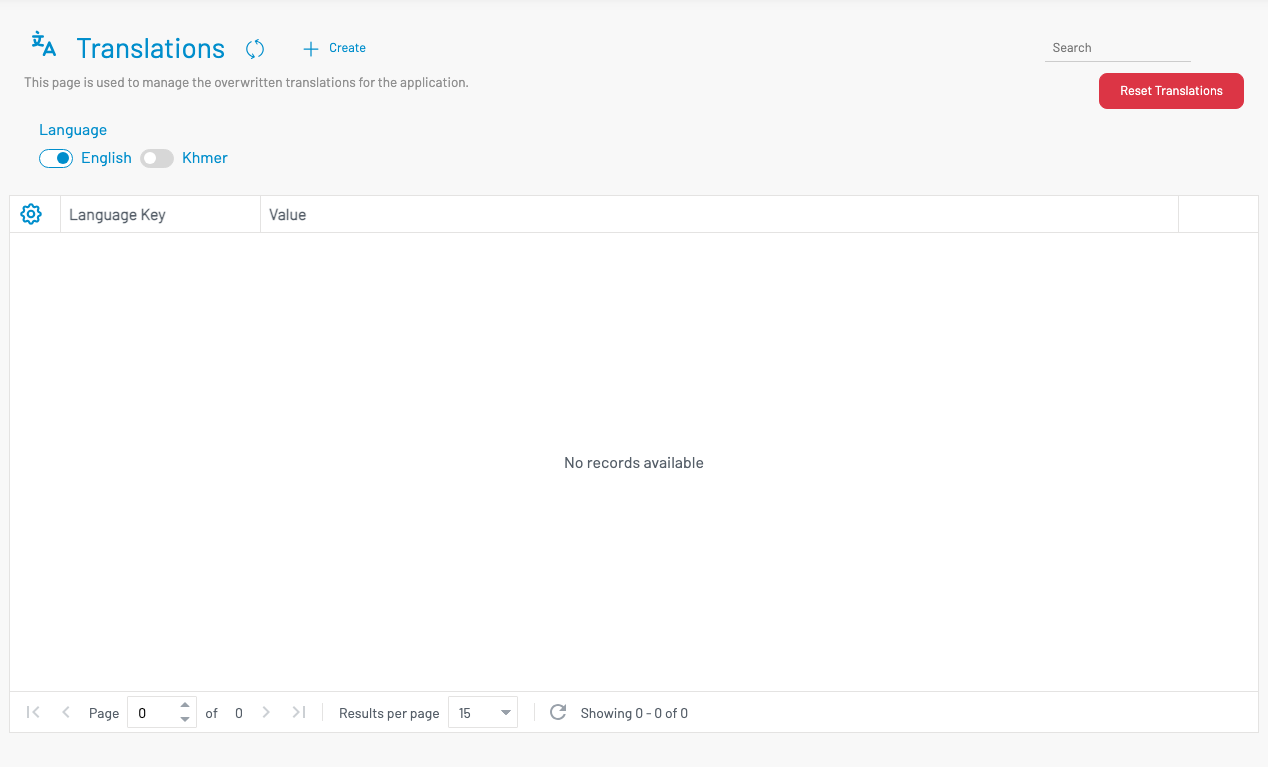
Section titled “ Overview”This page manages overwritten translations only. If the table is empty, the application is using the built-in defaults for the selected language. Custom keys you add here replace the default text wherever that language key is used in the UI.
Language filter
Section titled “ Language filter”Use the language toggles (for example, English / Khmer) to switch which language’s custom translations you are viewing and editing. Select one language before creating or searching for keys.
List columns
Section titled “ List columns”| Column | Description |
|---|---|
| Language Key | The internal translation key used by the application (for example, a label identifier). |
| Value | The custom text shown to users for that key in the selected language. |
Use Search to find a key or value in the current language list.
Create or edit a translation
Section titled “ Create or edit a translation”Click + Create to add a custom override for the selected language.
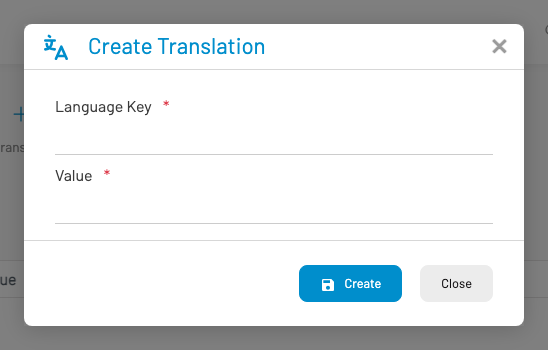
Language Key (required): Enter the exact key used by the application. Keys must match the identifiers already defined in the product.
Value (required): Enter the replacement text for that key in the selected language.
Click Create (or Save when editing) to store the override. Changes apply after the UI reloads translation resources — you may need to refresh the browser or use Clear System Caches if labels do not update immediately.
Reset translations
Section titled “ Reset translations”The red Reset Translations button clears all custom translation overrides and restores the application defaults. Confirm the dialog only when you intentionally want to discard every custom entry. This action cannot be undone from the UI.
Permissions
Section titled “ Permissions”Access requires the Translations list permission (systranslation.list). Contact a system administrator if the menu item is not visible.