
Mart — Sale processing
This section explains how to find products, add them to a sale, and complete payment in Mart (Retail) Mode.
You need to Login first and select Mart mode.
1. Screen Layout Overview (Mart Mode)
Section titled “ 1. Screen Layout Overview (Mart Mode)”The main screen is divided into three primary sections:
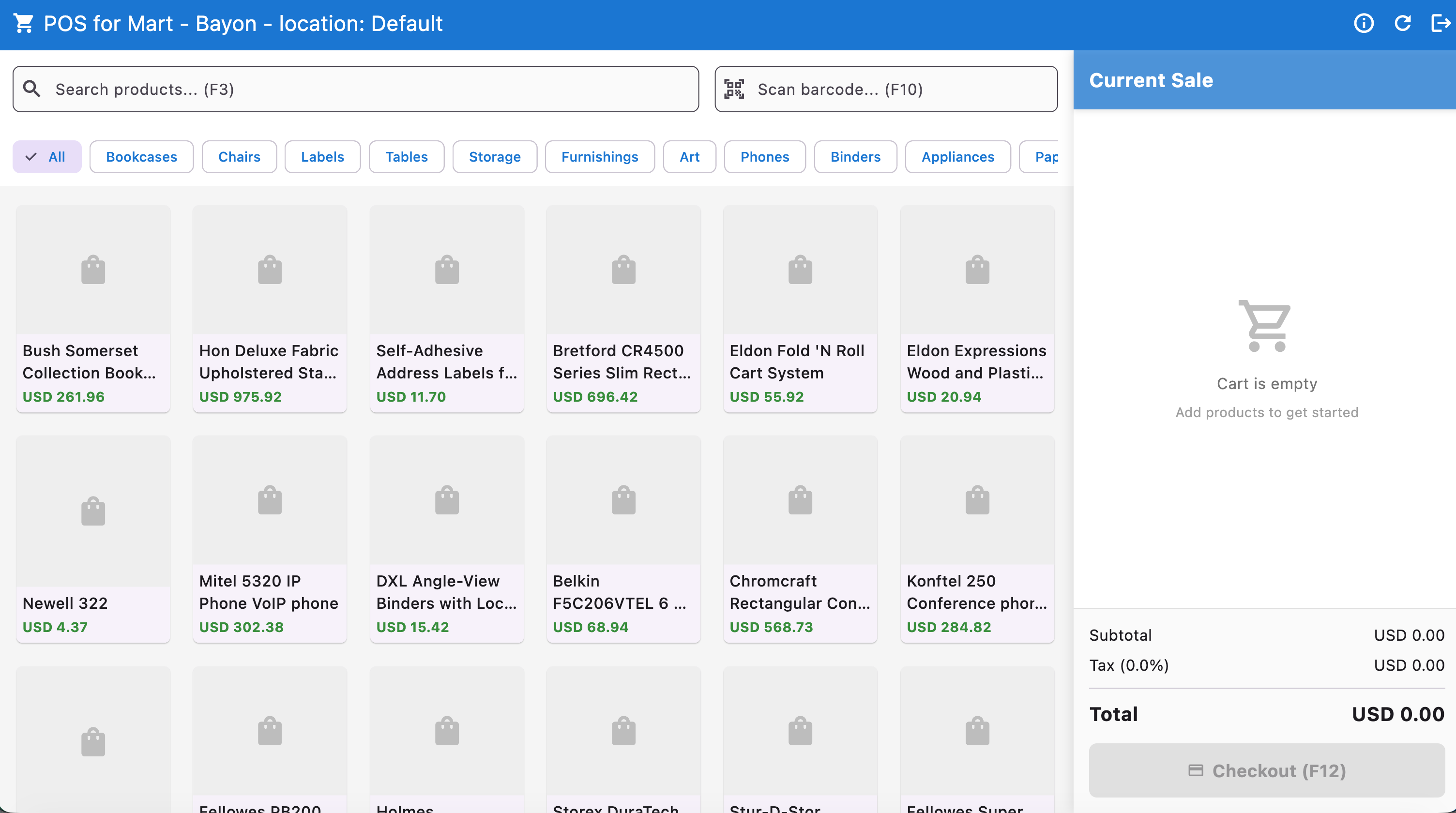
| Section | Function | Key Components |
|---|---|---|
| A. Header / Search Bar | System commands and product lookup | Search field, Scan Barcode field, Refresh / History / Settings icons |
| B. Product Catalog | Display and selection of items | Category filters, Product tiles |
| C. Current Sale Panel | Items and totals for the transaction | Item list, Subtotal, Tax, Total, Checkout (F12) |
2. Adding Products to the Sale
Section titled “ 2. Adding Products to the Sale”Method 1: Searching and Manual Selection
Section titled “ Method 1: Searching and Manual Selection”- Click Search products… (F3).
- Type the product name or SKU to filter the catalog.
- Or filter by Category Tags below the search bar.
- Click or tap a product tile to add it to Current Sale.
Method 2: Scanning (fastest)
Section titled “ Method 2: Scanning (fastest)”- Ensure your barcode scanner is connected.
- Scan the item barcode.
- The product is added to Current Sale automatically.
Tip: Press F10 to focus the scan field if it loses focus.
3. Reviewing the Current Sale
Section titled “ 3. Reviewing the Current Sale”The Current Sale panel shows:
- Item List — name, quantity, and price
- Subtotal — before tax
- Tax — applied sales tax
- Total — amount the customer owes
4. Completing the Transaction
Section titled “ 4. Completing the Transaction”- Verify the Total with the customer.
- Click Checkout (F12) to open the payment / checkout screen.
Checkout and Payment
Section titled “ Checkout and Payment”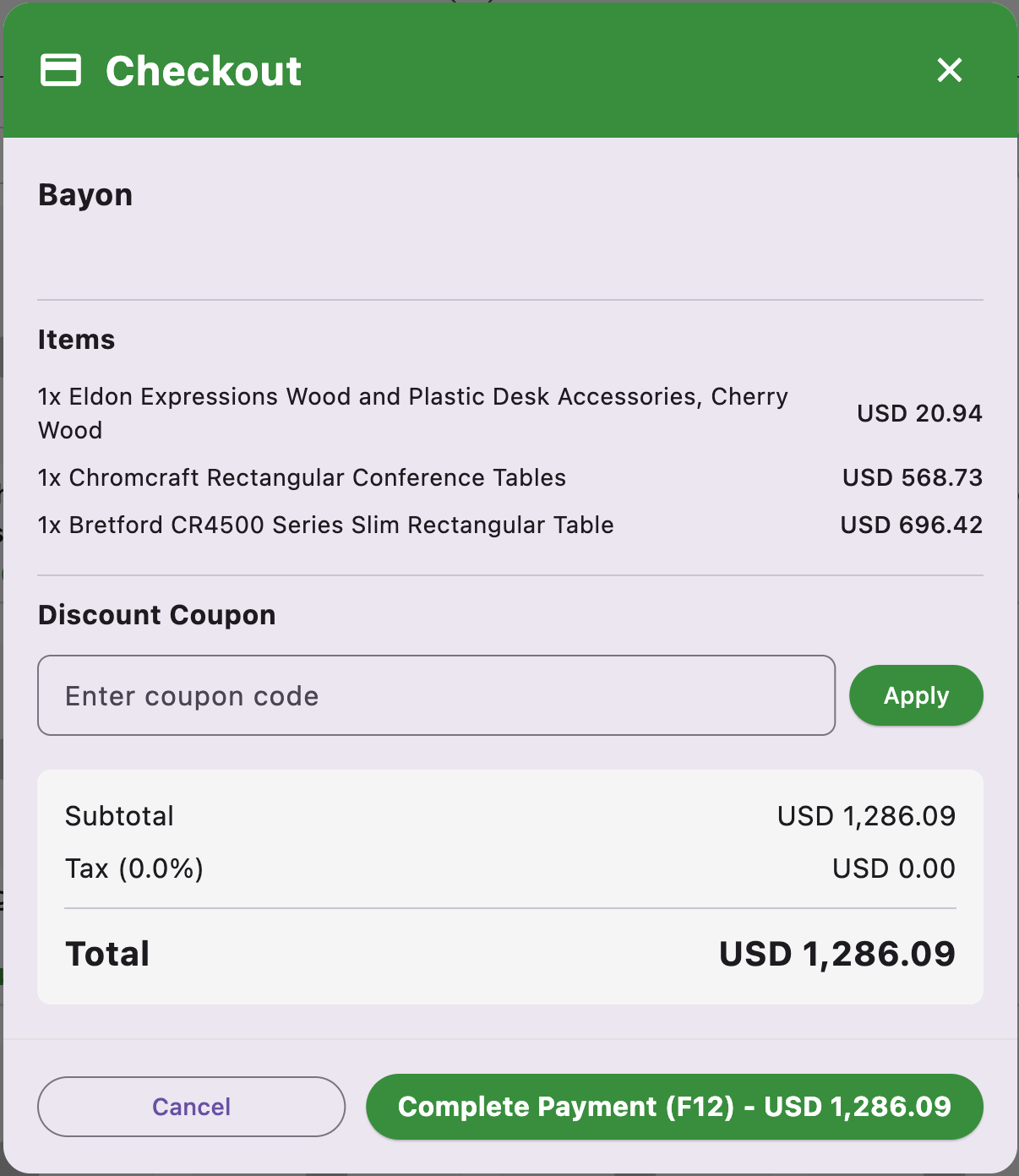
Checkout screen overview
Section titled “ Checkout screen overview”| Section | Purpose |
|---|---|
| Items List | Final review of products and quantities |
| Discount Coupon | Enter a code and click Apply |
| Transaction Summary | Subtotal, Tax, and Total |
| Action Buttons | Cancel or Complete Payment (F12) |
Reviewing the order
Section titled “ Reviewing the order”Confirm items and quantities with the customer, then check the final Total.
Applying a discount coupon
Section titled “ Applying a discount coupon”- Enter the code under Discount Coupon.
- Click Apply.
- Confirm Subtotal, Tax, and Total update.
Finalizing the payment
Section titled “ Finalizing the payment”After the customer has paid, click Complete Payment (F12) to finalize the sale.
To Cancel: Click Cancel to return to the Current Sale panel and modify or clear the cart.
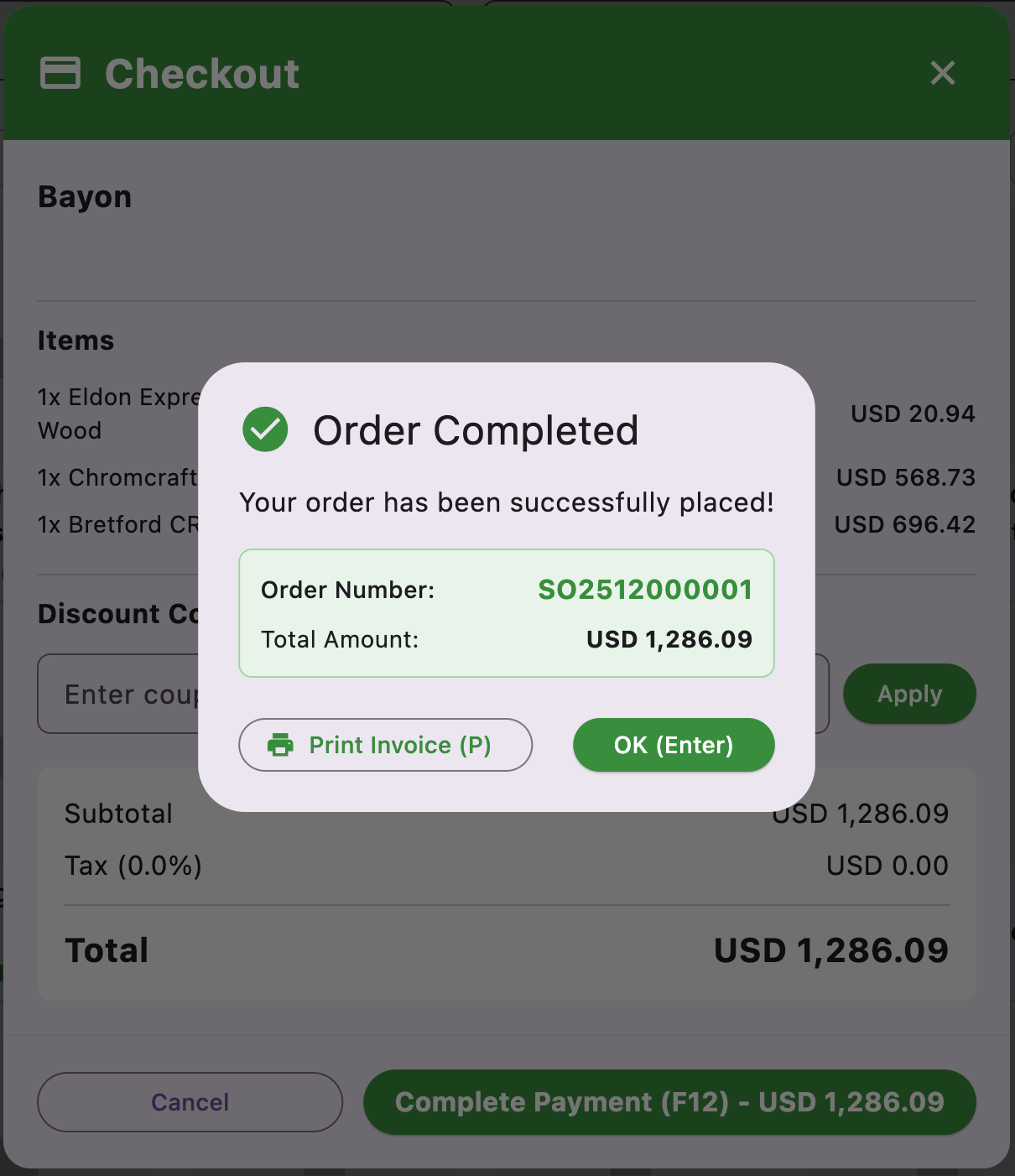
Order Completed
Section titled “ Order Completed”The confirmation shows:
- Message that the order was placed successfully
- Order Number (e.g. SO2512000001)
- Total Amount
Final actions:
- Print Invoice (P) — print the receipt (also press P)
- OK (Enter) — close and return to an empty cart for the next customer
Important: Print the invoice first, then click OK, so the customer receives proof of purchase before the next sale.