
Workflows
Workflows define how requests are routed for approval and what happens after approve/reject (update record, send email/SMS, wait for approval, and so on). Many Self Service actions (leave, resignation, job requisition, training, etc.) start a workflow via a trigger.
Navigation: left sidebar → System → Workflows (/system/workflows).
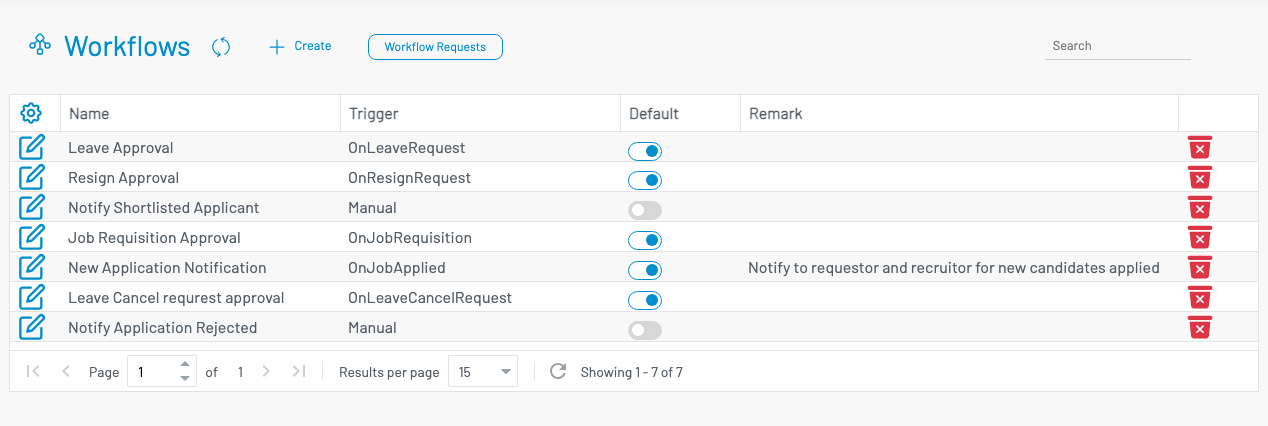
Also open Workflow Requests from the header to monitor submitted instances — see Workflow Requests.
Video walkthrough: How to design a workflow (YouTube).
List columns
Section titled “ List columns”| Column | Description |
|---|---|
| Name | Workflow name (e.g. Leave Approval, Job Requisition Approval). |
| Assign | When shown (personnel module), opens Assign workflow to employees so selected staff use this workflow for a trigger. |
| Trigger | Event that starts the workflow (e.g. OnLeaveRequest, OnJobRequisition, Manual). |
| Default | Toggle: this workflow is the default for its trigger. |
| Remark | Notes. |
Only one workflow should normally be Default per trigger. Non-default workflows can still run when assigned to specific employees or selected manually (for Manual triggers).
Create a workflow
Section titled “ Create a workflow”Click + Create.
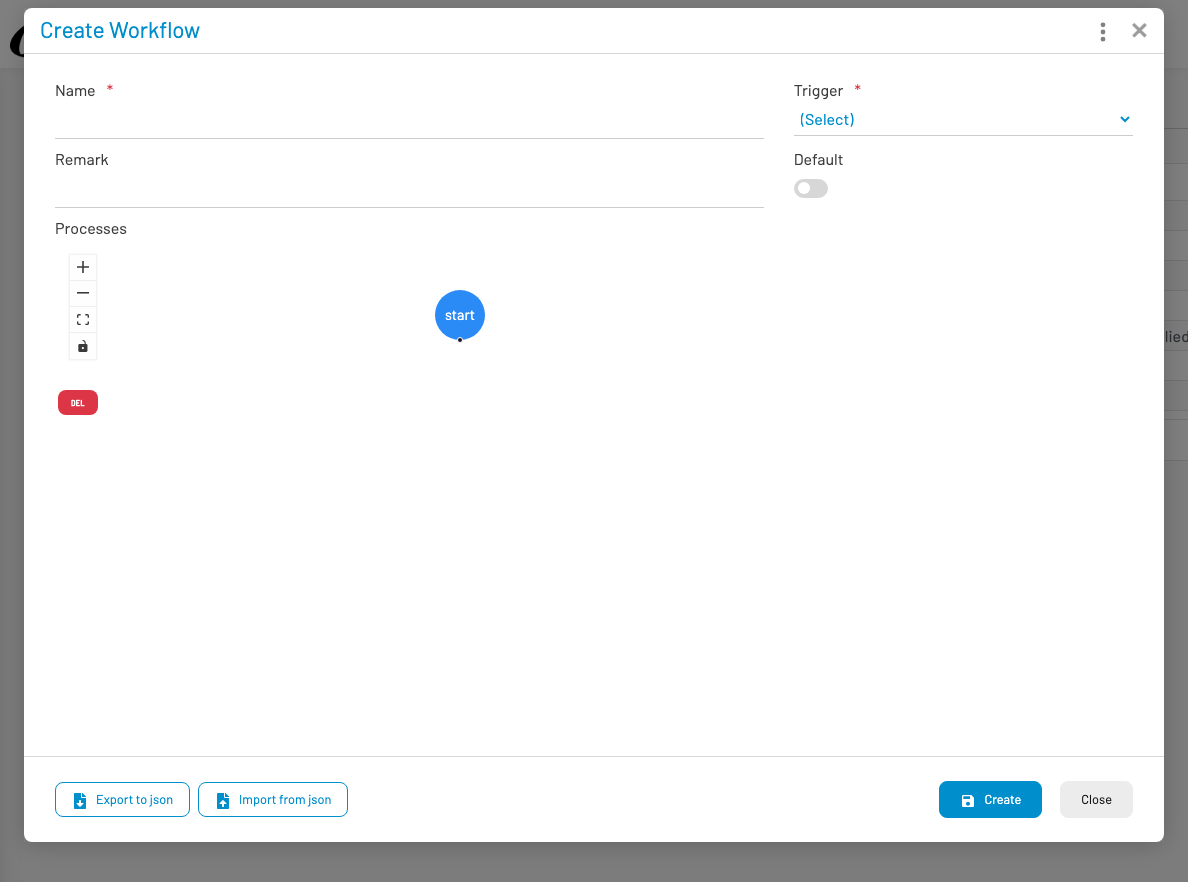
- Enter Name (required).
- Select Trigger (required) — the business event that starts this flow.
- Optionally set Default and Remark.
- Design the flow under Processes (starts with a start node).
- Click Create.
Use Export to json / Import from json to back up or copy a flow design between environments.
Design the process
Section titled “ Design the process”Open an existing workflow (edit) to work on a full process graph.
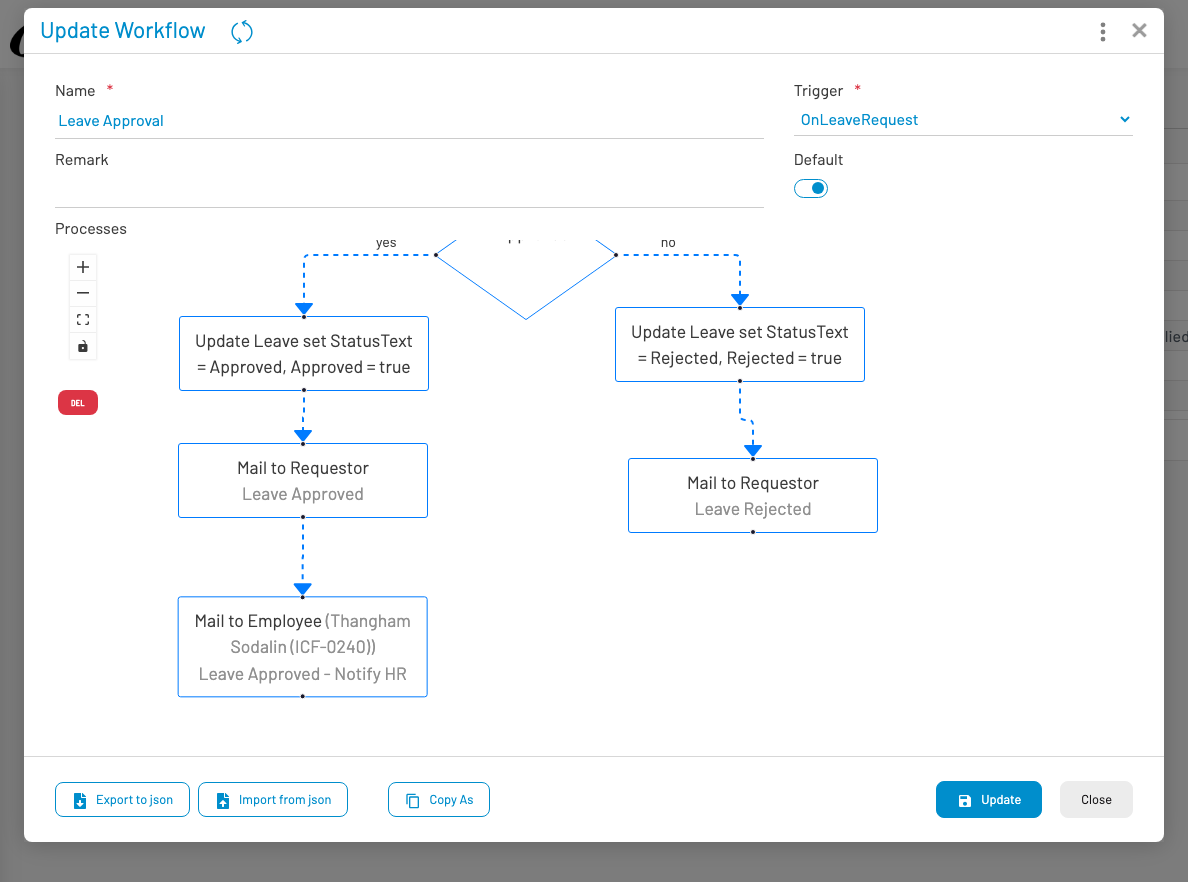
Typical building blocks:
| Element | Role |
|---|---|
| Start | Entry point of the flow |
| Condition | Branch (yes / no) based on an expression |
| Action nodes | Wait for approval, mail, SMS, update record, read record, etc. |
| End | Finish a path |
Canvas tools: zoom in/out, fit, lock, and DEL to remove the selected node.
Common pattern after Wait for approval:
- Yes path — update the record to Approved, mail requestor / HR
- No path — update the record to Rejected, mail requestor
Connect nodes by dragging from a connection point to the next step. Click a node to configure its action (approvers, mail template, field updates, conditions).
Assign to employees
Section titled “ Assign to employees”When the Assign button is available on a row, use it to bind the workflow to selected employees (and optionally load staff from an org unit). Choose the trigger type and click Assign now. Those employees then use this workflow for that trigger instead of (or in addition to) the global default, depending on your setup.
Related Self Service triggers
Section titled “ Related Self Service triggers”Examples of triggers commonly used with employee Self Service:
| Trigger | Typical Self Service / module |
|---|---|
OnLeaveRequest |
Leave Request |
OnLeaveCancelRequest |
Leave Cancel Request |
OnResignRequest |
Resignation Request |
OnJobRequisition |
Job Requisition |
OnJobApplied |
New job application notification |
Manual |
Manual / notify actions (e.g. recruitment notify) |
Configure matching mail templates under Message Templates when nodes send email.