
Employment
An employment record is a job assignment for an employee at a specific point in time. It defines where the person works, what role they hold, their work schedule, leave entitlements, and compensation for that assignment.
Every active employee needs at least one employment record. Without it, the person has master data only and cannot appear on the Employees list with a job title, org unit, or employee ID. See Employee Administration for how employee and employment records relate.
Open an employment record from:
The briefcase icon on a row in HR → Personnel → Employees
Employment Records on a saved employee form
When an employee is promoted, transferred, or rehired, a new employment record is created. Previous records are kept as job history.
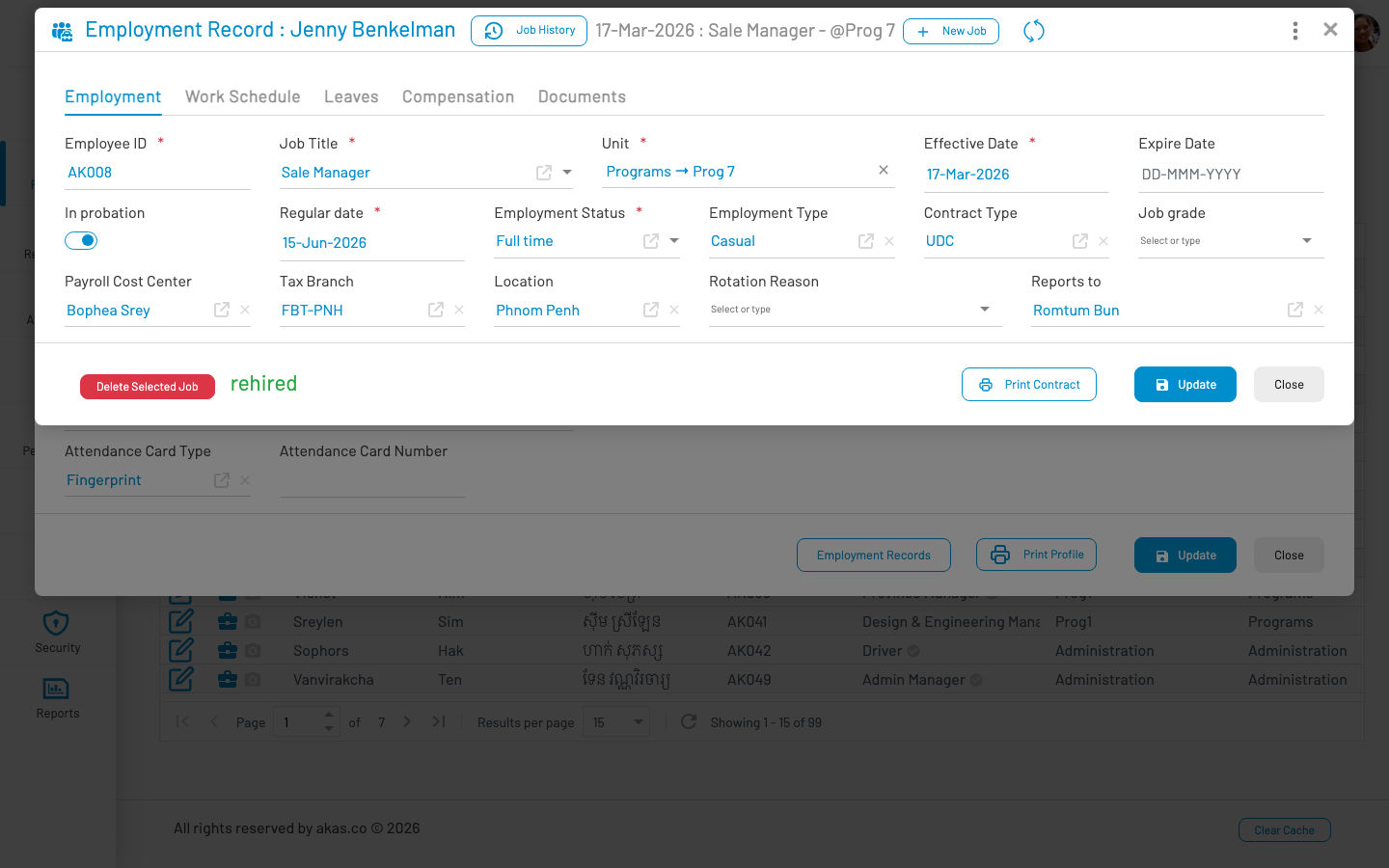
Form header actions
Section titled “ Form header actions”| Action | Description |
|---|---|
| Job History | Opens a timeline of all employment records for this employee. Click a past record to view or edit it. |
| New Job | Creates a new employment record (promotion, transfer, or rotation). See Employee Rotation. |
| Print Contract | Generate an employment contract PDF or Word file. See Print Employment Contract. |
| Employee | Opens the employee master data form. |
| Delete Selected Job | Removes the current employment record (not available if linked to a separation). |
| Rehire Employee | After separation — start a new employment for a returning employee. |
| Separation Info | View separation details when the employee has been separated. |
Employment tab
Section titled “ Employment tab”Core job assignment details. Required fields must be completed before the employee is fully active in HR modules.
| Field Name | Type of Data | Description |
|---|---|---|
| Employee ID | Text | Company employee number for this assignment (e.g. AK001). Synced to the employee master record. |
| Job Title | Lookup | Position held (from Job Titles setup). Required. |
| Org Unit | Lookup | Department or unit the employee belongs to. Required. |
| Effective Date | Date | Date this job assignment starts. Required. |
| Expire Date | Date | End date of this assignment, if applicable (e.g. fixed-term contract). |
| In Probation? | Boolean | Whether the employee is currently in probation. When enabled, Regular Date becomes required. |
| Regular Date | Date | Date probation ends and the employee becomes regular. Auto-suggested as effective date + 90 days when probation is enabled. |
| Employment Status | LOV (19) | Status such as Active, Suspended, etc. Required. |
| Employment Type | LOV (20) | Type such as Full-time, Part-time, Contract. |
| Contract Type | LOV (21) | Contract classification (e.g. definite, indefinite). |
| Job Grade | LOV (23) | Grade or level within the organisation. |
| Payroll Cost Center | Lookup | Cost center used for payroll posting. |
| Tax Branch | LOV (48) | Tax branch for salary tax reporting. |
| Location | Lookup | Physical work location. |
| Rotation Reason | LOV (44) | Reason for job change when this record was created through a rotation. |
| Reports To | Lookup | Manager or supervisor for this assignment. |
Note: The Employees list displays job title, org unit, division, and related columns from the current employment record (the assignment in effect today).
Work Schedule tab
Section titled “ Work Schedule tab”Defines how attendance is tracked for this job assignment.
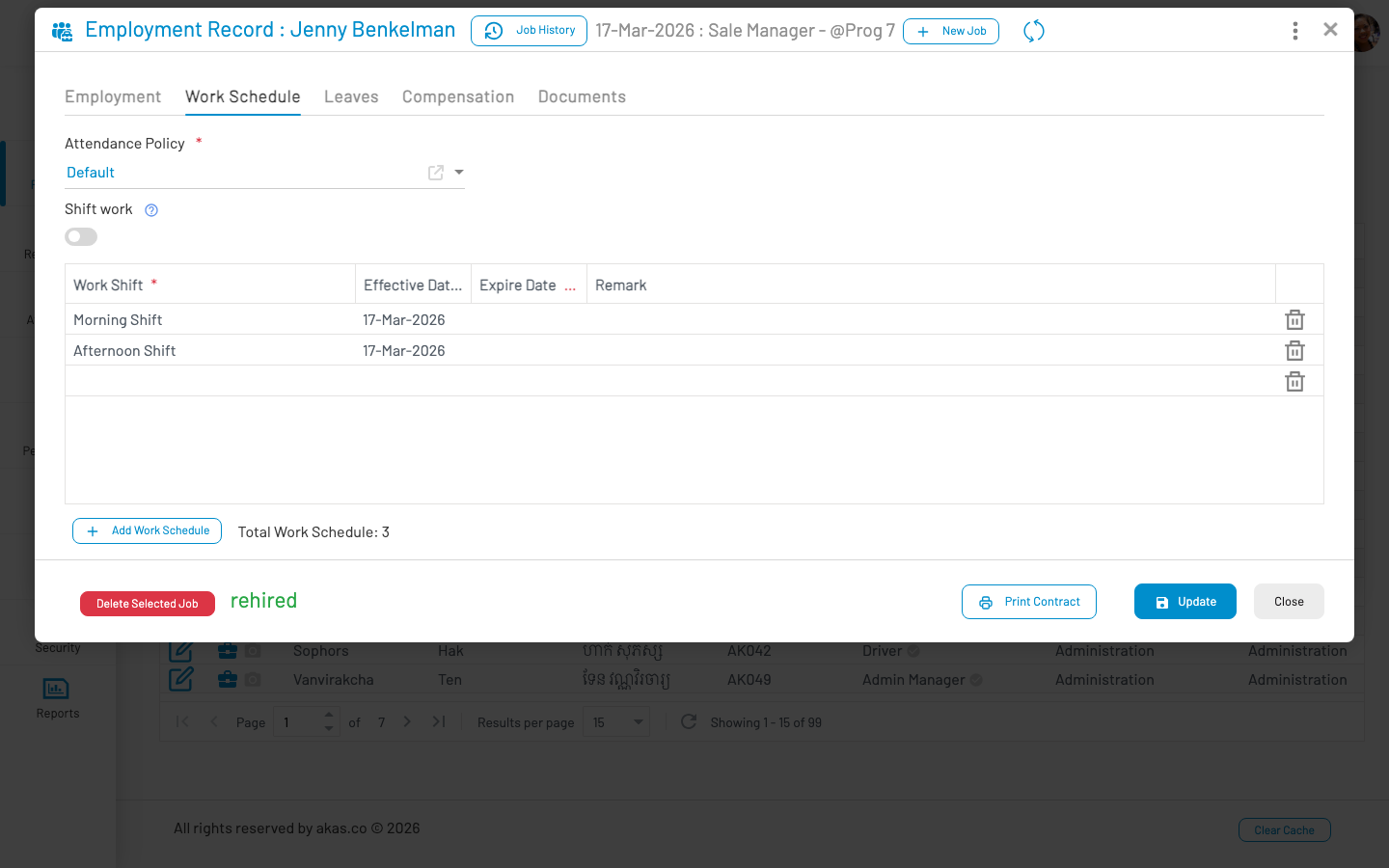
| Field Name | Type of Data | Description |
|---|---|---|
| Attendance Policy | Lookup | Attendance rules applied to this employee (late/early rules, overtime calculation, etc.). Required. |
| Shift Work | Boolean | Enable if the employee works on a shift roster instead of a fixed weekly schedule. When enabled, the work schedule grid below is hidden — shifts are managed through Attendance → Work Rosters. |
Work Schedules grid
Section titled “ Work Schedules grid”Visible when Shift Work is off. Defines the employee’s regular weekly work shifts.
| Column | Description |
|---|---|
| Work Shift | Work shift pattern (from Leave → Work Shifts setup). Required. Each shift can only appear once per employment. |
| Effective Date | Date this shift assignment starts. Required. |
| Expire Date | Date this shift assignment ends, if applicable. |
| Remark | Optional notes. |
Leaves tab
Section titled “ Leaves tab”Defines leave entitlements for this job assignment. Leave balances are calculated based on the quotas set here.
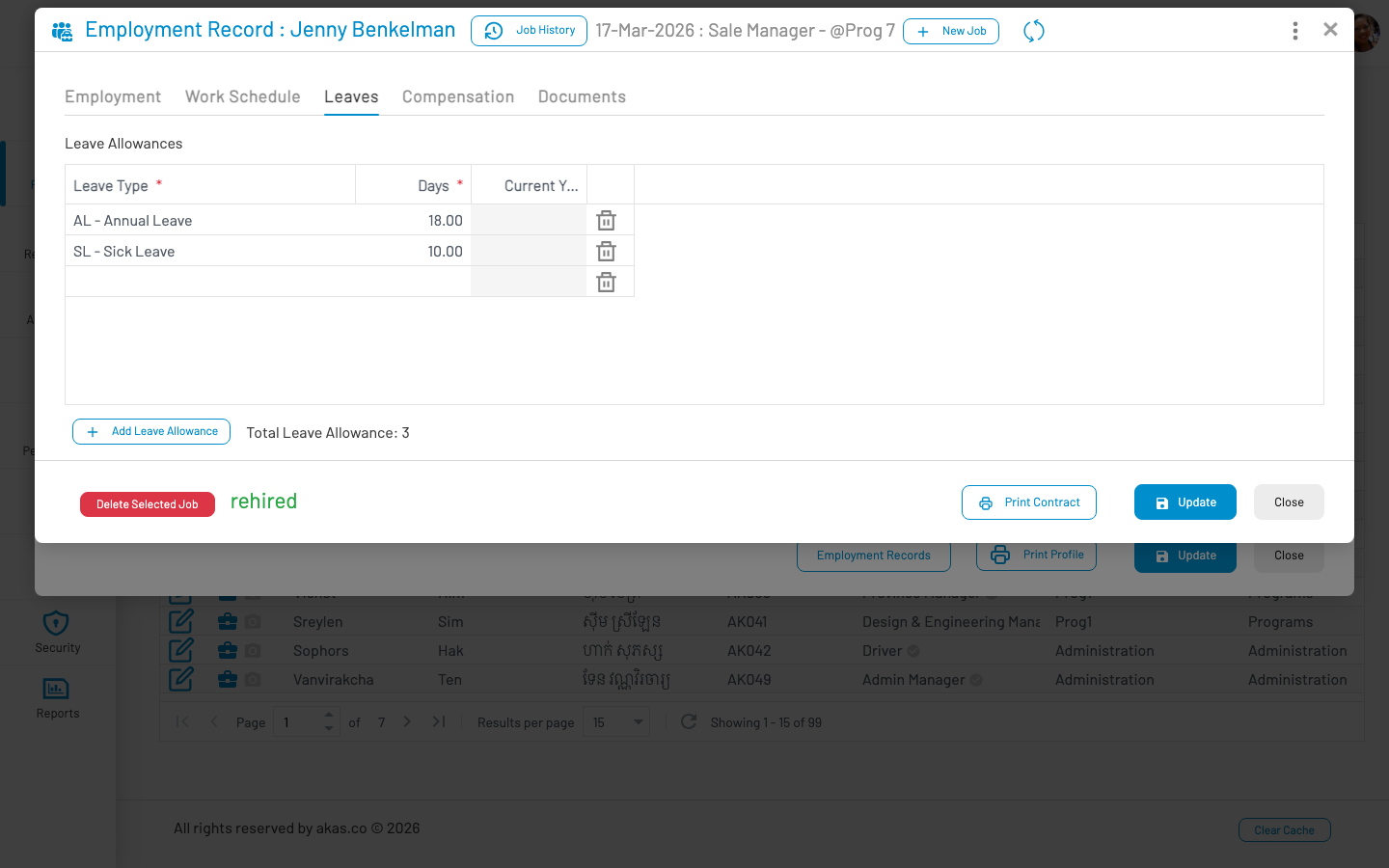
Leave Allowances grid
Section titled “ Leave Allowances grid”| Column | Description |
|---|---|
| Leave Type | Type of leave (from Leave → Leave Types setup). Required. Each leave type can only appear once per employment. |
| Days | Number of leave days allocated per year for this leave type. Required. |
| Current Year | Read-only. Shows leave days already used or remaining in the current year. |
Leave quotas are typically copied from the previous employment record when an employee is rotated. Adjust quotas when the new job carries different leave entitlements.
Compensation tab
Section titled “ Compensation tab”Defines pay policies and salary components for this job assignment. This tab is visible only to users with payroll view permission.
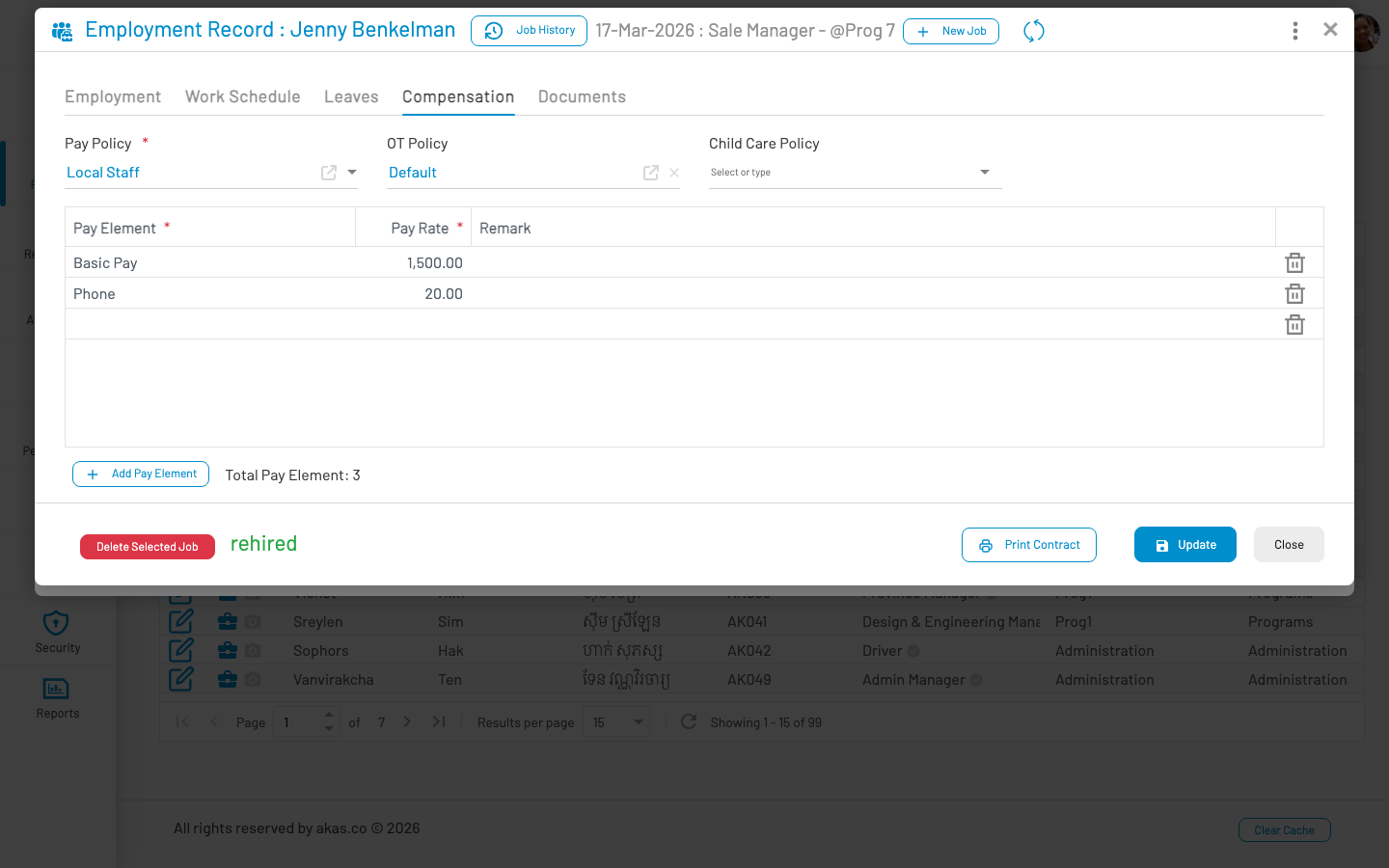
| Field Name | Type of Data | Description |
|---|---|---|
| Pay Policy | Lookup | Pay policy governing salary calculation, pay periods, and rules. Required. |
| OT Policy | Lookup | Overtime calculation policy. |
| Child Care Policy | Lookup | Child care allowance policy, if applicable. |
Pay Elements grid
Section titled “ Pay Elements grid”Individual salary and benefit components that make up the employee’s pay for this assignment.
| Column | Description |
|---|---|
| Pay Element | Pay element name (e.g. Basic Salary, Housing Allowance). Required. Each element can only appear once per employment. |
| Pay Rate | Amount for this pay element. Required. |
| Remark | Optional notes. |
Pay element amounts are updated during Employee Batch Rotation when salaries change alongside a job transfer.
Documents tab
Section titled “ Documents tab”Attach and manage documents related to this employment assignment (e.g. signed contract, offer letter). Uses the same document library as the employee form, linked to the employee record.
Common scenarios
Section titled “ Common scenarios”| Scenario | What to do |
|---|---|
| New hire | Create employee master data, then create the first employment record with all tabs completed. |
| Promotion / transfer | Open current employment → New Job → enter new job details on all tabs → Save. |
| Salary change only | Edit pay elements on the Compensation tab, or use batch rotation if changing multiple employees. |
| End of employment | Record a separation — do not delete the employment record. |
| Return after leaving | Open employment → Rehire Employee → create a new employment record. |
See also
Section titled “ See also”Employee Administration — Employee master data and onboarding workflow