
Permissions
Permissions define the specific actions a role may perform within each module — such as viewing records, creating transactions, or approving documents. Permissions are configured per role, not per individual user. Users receive access through the roles assigned to their account.
Permissions can be managed from the Roles list or role form by clicking Permissions on a role (except Administrators).
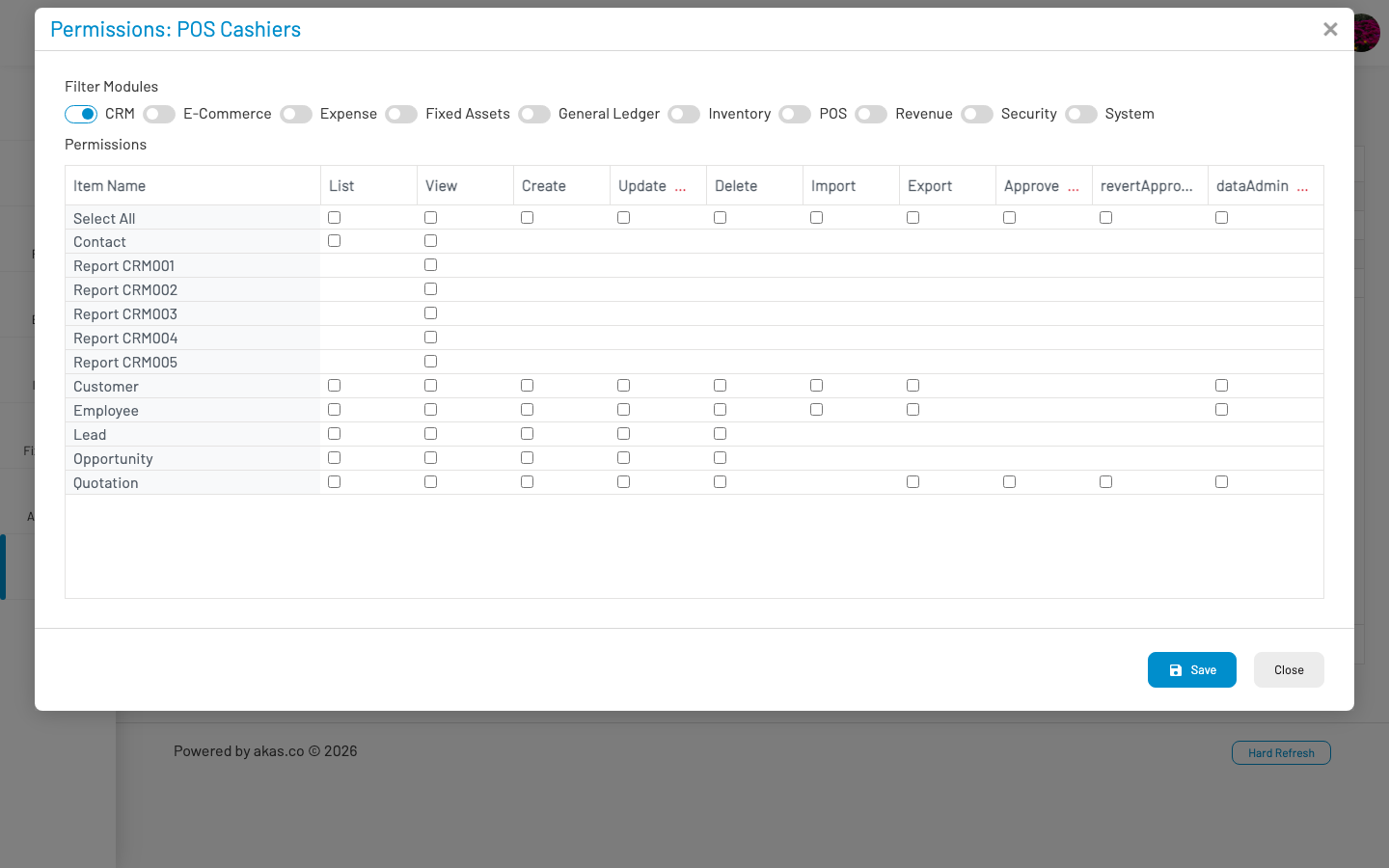
The permission screen displays a matrix of scopes (functional areas) against action types. Use the Filter Modules radio buttons at the top to narrow the list by module (e.g. Setup, CRM, Revenue, HR, Accounting).
Permission action types
Section titled “ Permission action types”| Action | Description |
|---|---|
| List | View the list page for a scope (i.e. customer list). |
| View | Open and read individual record (might needs a list permission). |
| Create | Add new records. |
| Update | Edit existing records. |
| Delete | Remove records. (some entities, i.e. invoice, needs to be in draft mode or approval reverted) |
| Import | Import data from external files. |
| Export | Export data to external files. |
| Approve | Approve documents or transactions that require approval. |
| Revert Approve | Undo a previous approval. |
| Data Admin | View and manage data created by other users within the same scope. Without this permission, users typically see only their own records. |
Not every scope supports every action type. Only applicable checkboxes are shown for each row.
Managing permissions
Section titled “ Managing permissions”- Open a role and click Permissions (or click Permissions on the roles list).
- Select the module filter to display the relevant permission rows.
- Check or uncheck the action columns for each scope.
- Use Select All in the first row to toggle an entire column for the current module filter.
- Click Save to apply changes.
Changes take effect immediately for all users assigned to that role.
Note: Permissions are limited to modules licensed and enabled for your tenant. Scopes from disabled modules do not appear in the permission matrix. Custom reports may appear as additional permission rows based on your system configuration.
How users, roles, and permissions work together
Section titled “ How users, roles, and permissions work together”- Create roles that reflect job functions (e.g. “Sales Rep”, “Finance Manager”). See Roles.
- Assign permissions to each role based on what that job function needs.
- Create user accounts and assign the appropriate role(s). See Users.
- Review access periodically — especially when employees change roles or leave the organization.
A user with multiple roles receives the union of all permissions from every assigned role. If any role grants a permission, the user has that permission.
For employee-linked accounts, use Disable All Separated Employees (on the Users list) to automatically disable accounts when the linked employee record is marked as separated in HR.
API keys use the same permission matrix. Open Permissions on a key from API Keys to grant scopes such as invoice.list for integrations.
See also
Section titled “ See also”Users — Create user accounts and assign roles
Roles — Create and manage role definitions
API Keys — External API access with header auth and scoped permissions